
Verifier profiles
Esta página aún no está disponible en tu idioma.
Every scan is recorded under a profile. Understanding profiles explains almost every unexpected refusal.
Your automatic profile
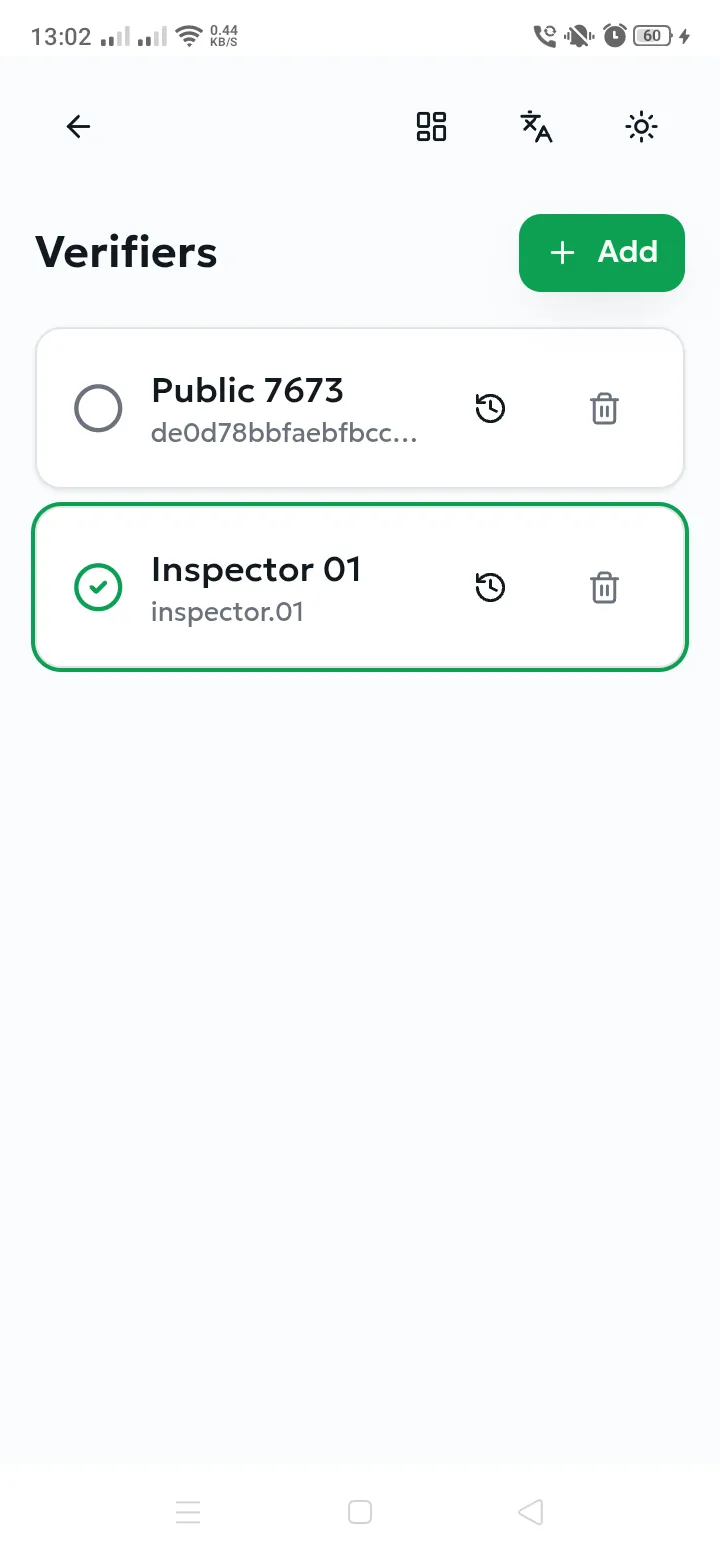
Section titled “Your automatic profile”The first time the app opens, it creates a Public profile for the device without asking anything — named after the type and a short number, for example Public 7673. Nothing needs to be set up, and the profile carries no personal information.
Adding a professional profile
Section titled “Adding a professional profile”Purpose. Use credentials issued by a brand — typically a Control profile for inspections, or a Reseller profile for a trade partner.
Prerequisites. A username and password given to you by the brand or the platform administrator (see Control verifiers).
- From the home screen, open Verifiers.
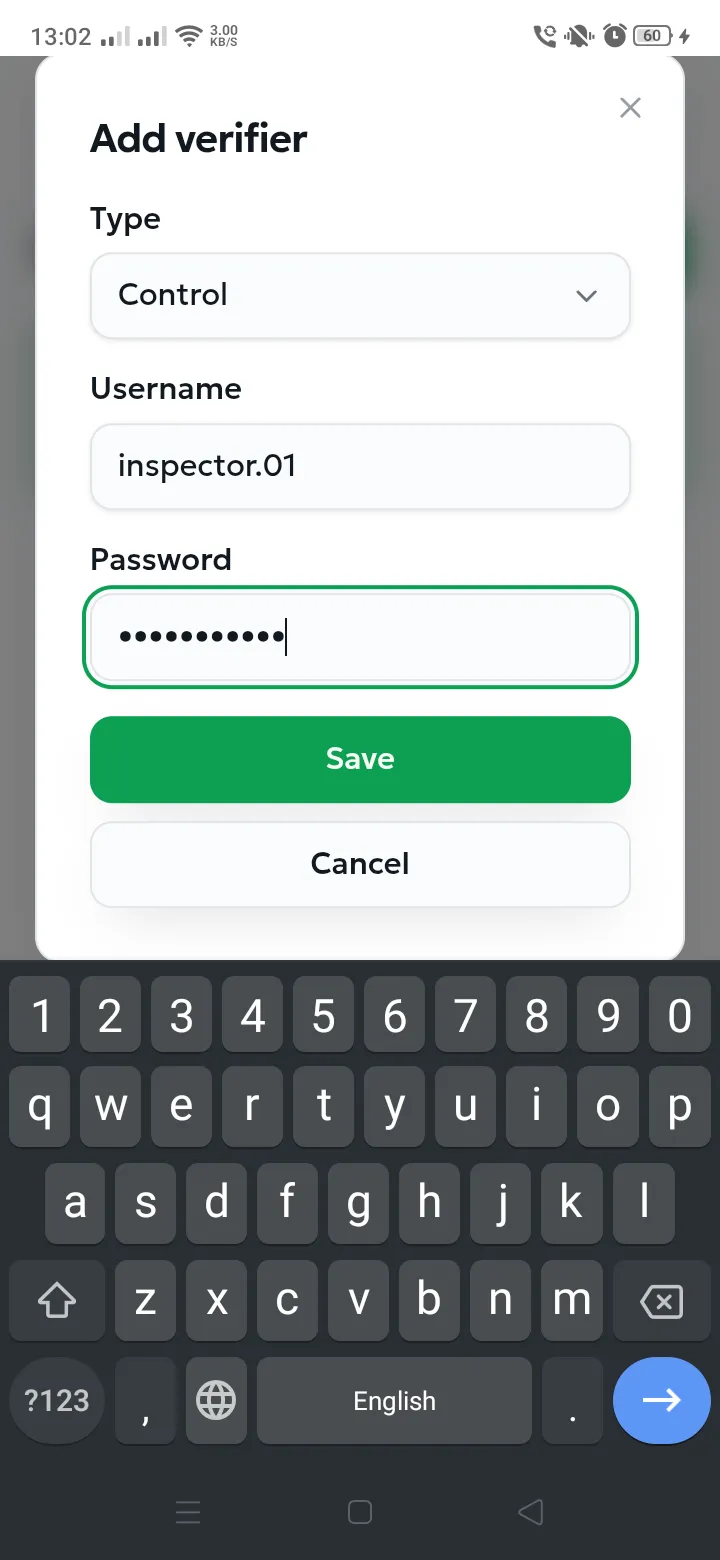
- Select Add.
- Choose the Type — for example Control.
- Enter the Username and Password you were given.
- Select Save.
Expected result. The profile appears in the list and becomes the active one. Scans are now recorded under it.
Common errors
Section titled “Common errors”| Message | Meaning | Resolution |
|---|---|---|
| Please select a type | No type chosen. | Pick the type your credentials belong to. |
| Username and password are required | A field is empty for a credential-based type. | Complete both fields. |
| Incorrect password! | The username exists but the password does not match. | Re-enter carefully; ask the brand to reset it if needed. |
| The verifier account is not valid! | No such profile exists, and this type does not allow self-creation. | Check the username, and that you selected the right type. |
| Could not add verifier | The request did not reach the server. | Check the network connection and try again. |
Switching the active profile
Section titled “Switching the active profile”On the Verifiers screen, tap the circle on the left of a profile card. It turns into a green check, the card is outlined, and the home screen updates to “Verifying as …”.
Removing a profile
Section titled “Removing a profile”Use the bin icon on the profile card. This removes the profile from this device only: the account itself and every scan already recorded under it are preserved. You can add it back at any time with the same credentials.