
Labels & exports
Esta página aún no está disponible en tu idioma.
Turning codes into something you can physically print.
Generating the documents
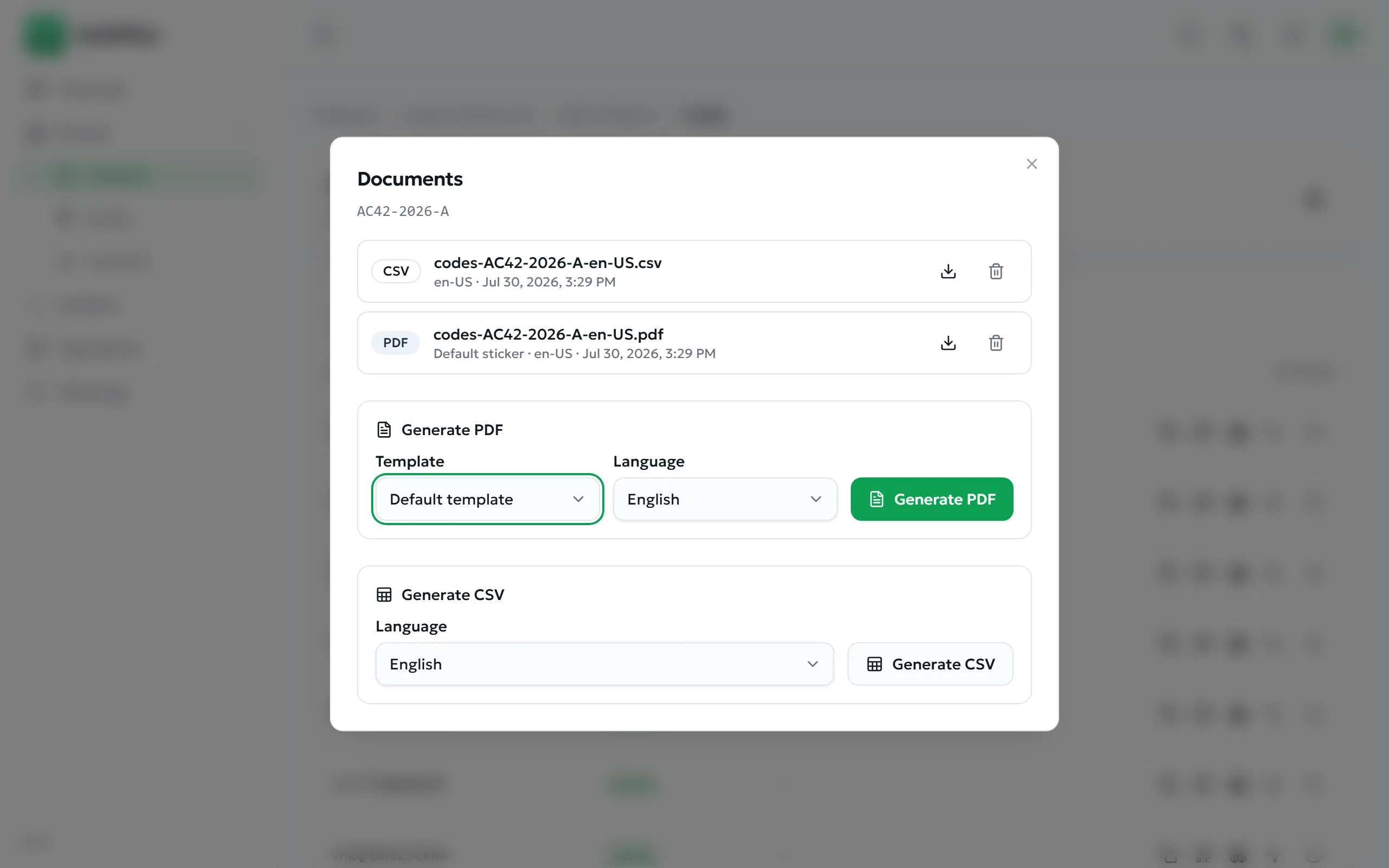
Section titled “Generating the documents”- Open the issuance and select Documents.
- For a printable sheet: choose a Template and a Language, then Generate PDF.
- For a data file: choose a language and Generate CSV.
- Generated documents stay listed, with a download button, so colleagues can retrieve them later.
What the PDF and CSV contain
Section titled “What the PDF and CSV contain”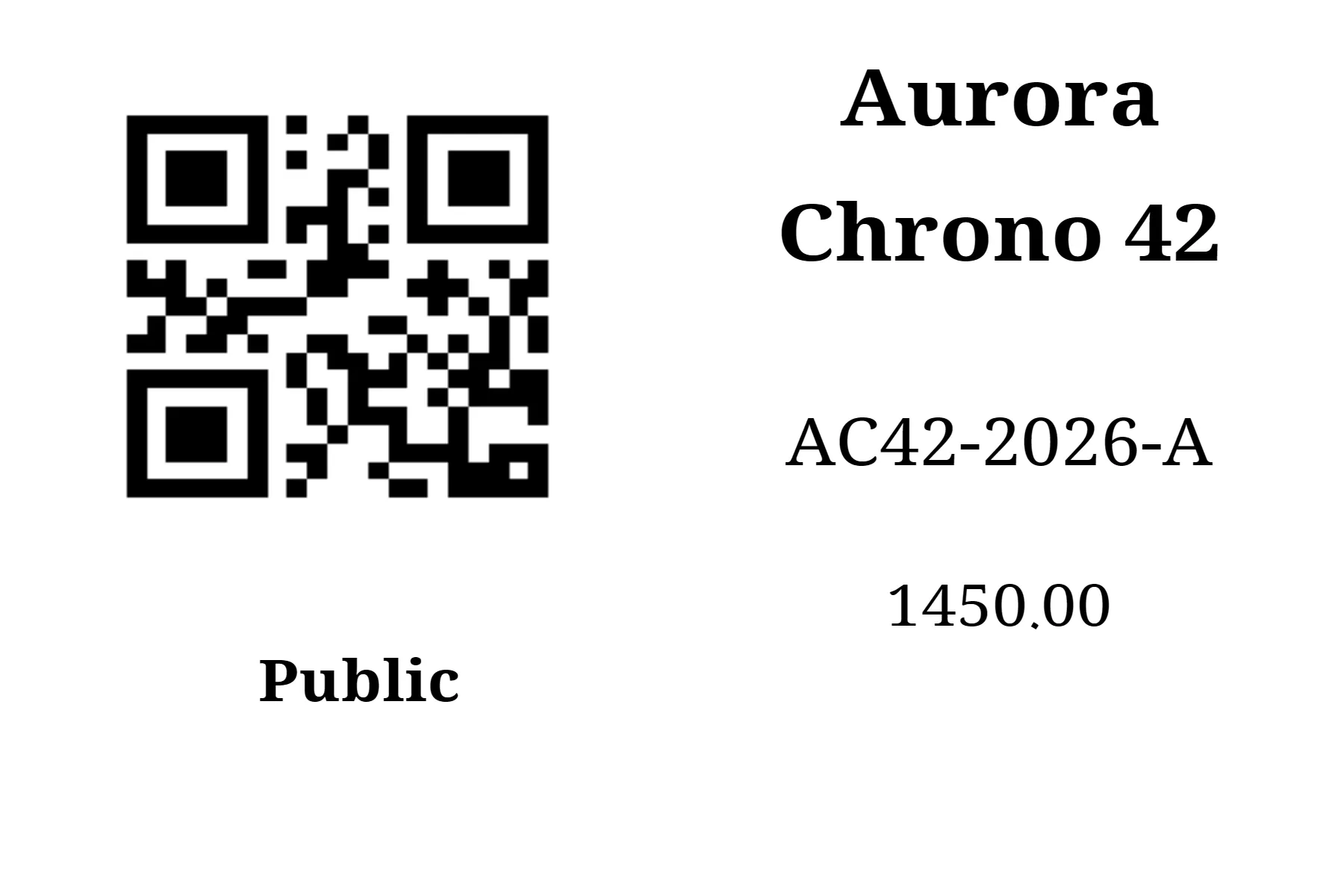
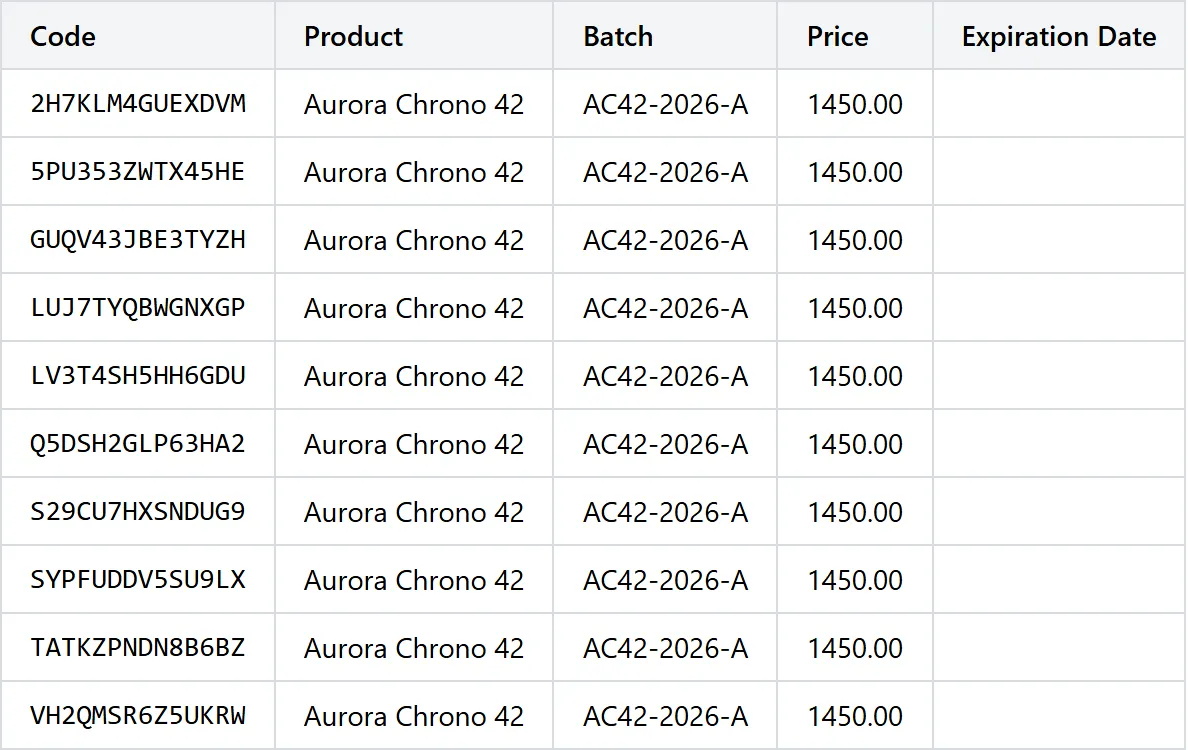
| PDF sticker shows | CSV columns |
|---|---|
| QR code · product or subject name · batch reference · unit value · expiry date · code type · the platform label footer text for that language | Code · Product · Batch · Price · Expiration Date — with headings translated into the language you chose |
Common errors
Section titled “Common errors”| Message | Resolution |
|---|---|
| No print template available | No label template is configured on the platform. Ask an administrator to add one (Platform configuration). |
| Kind must be pdf or csv | An internal request problem — reload the page and try again. |
| Object storage is not configured | Documents cannot be stored server-side. Contact your administrator. |