Getting started
Set up the app
Section titled “Set up the app”- Install AuthPlus from Google Play, or open
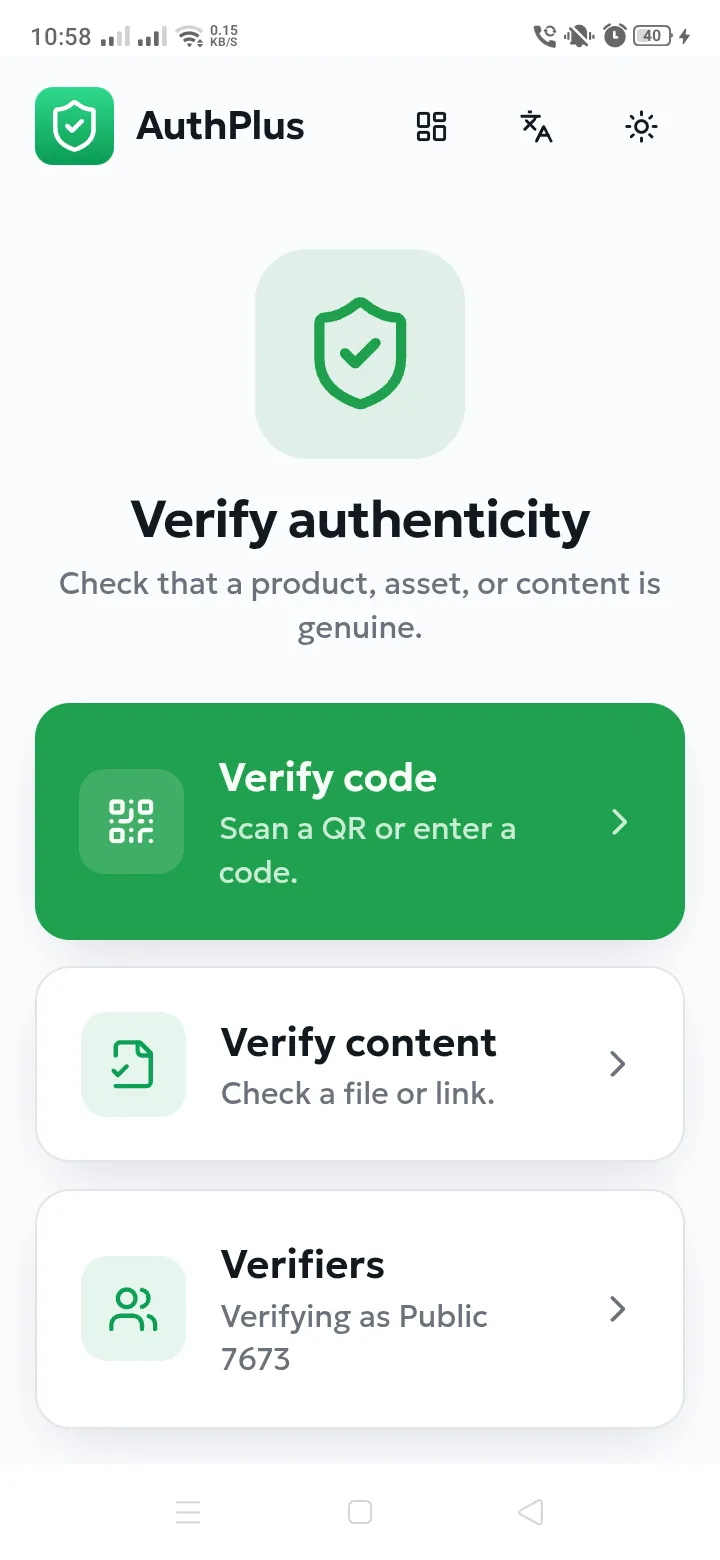
/verifyin a browser. - Open it. A verifier profile is created for you automatically — the home screen shows “Verifying as …”. Nothing to configure.
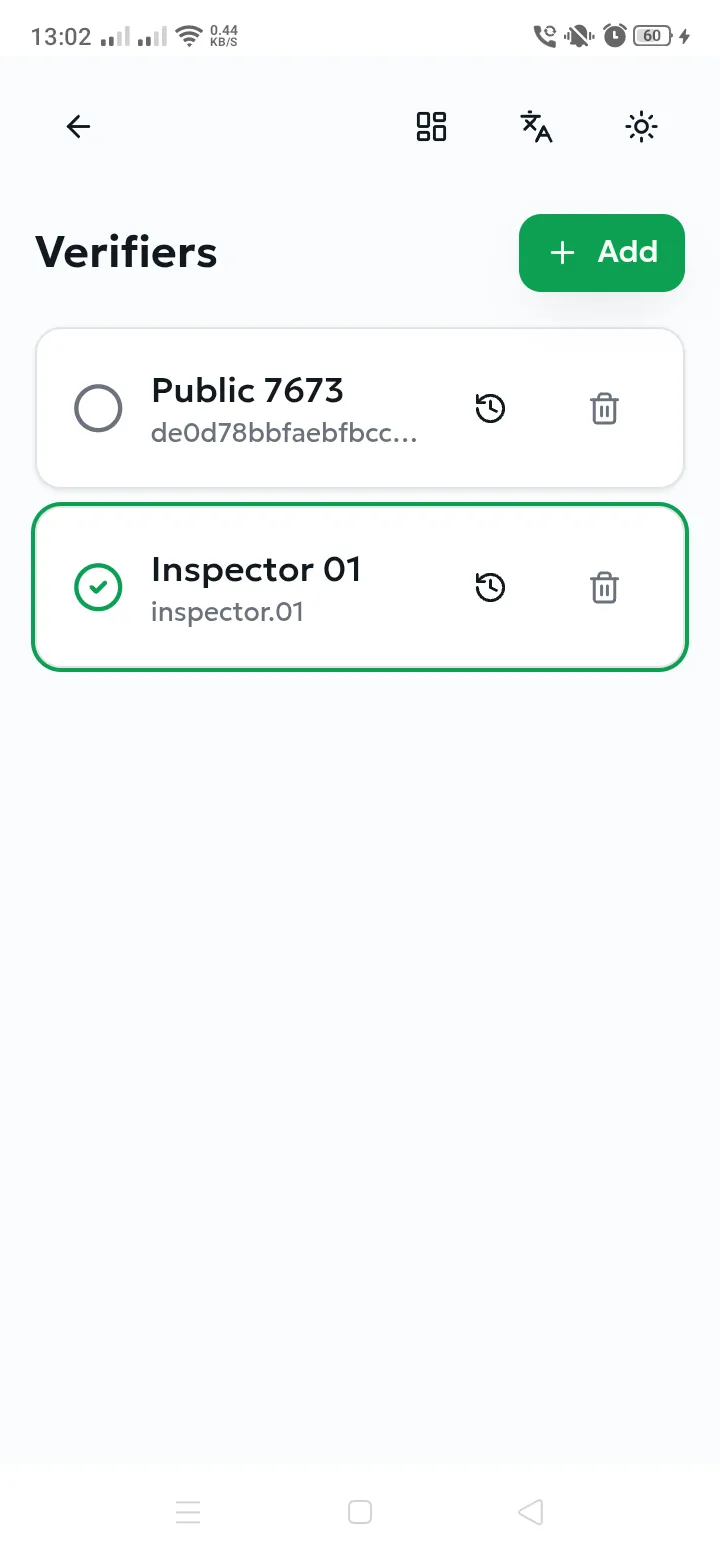
- If a brand gave you credentials (a Control profile, say), add them: Verifiers → Add → choose the type → username and password → Save. Tap the circle on a card to switch profile.
Scan and read the result
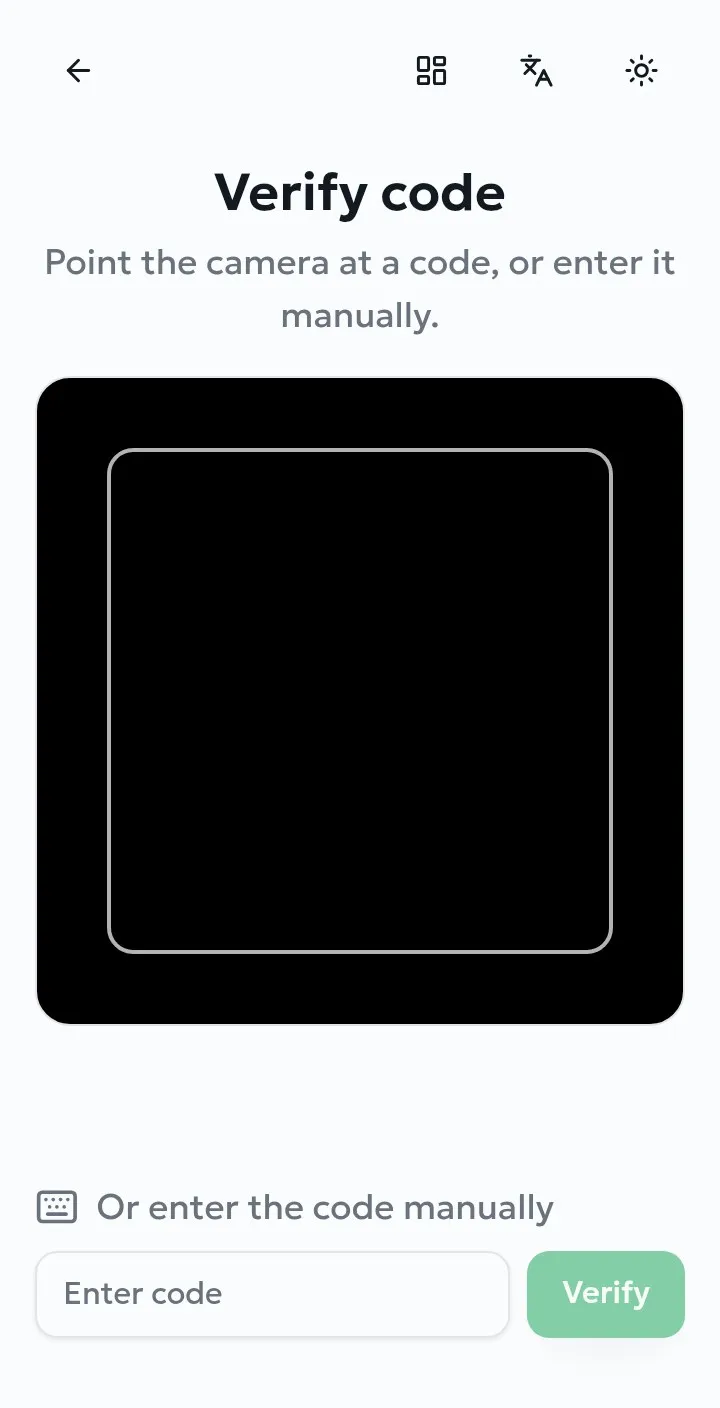
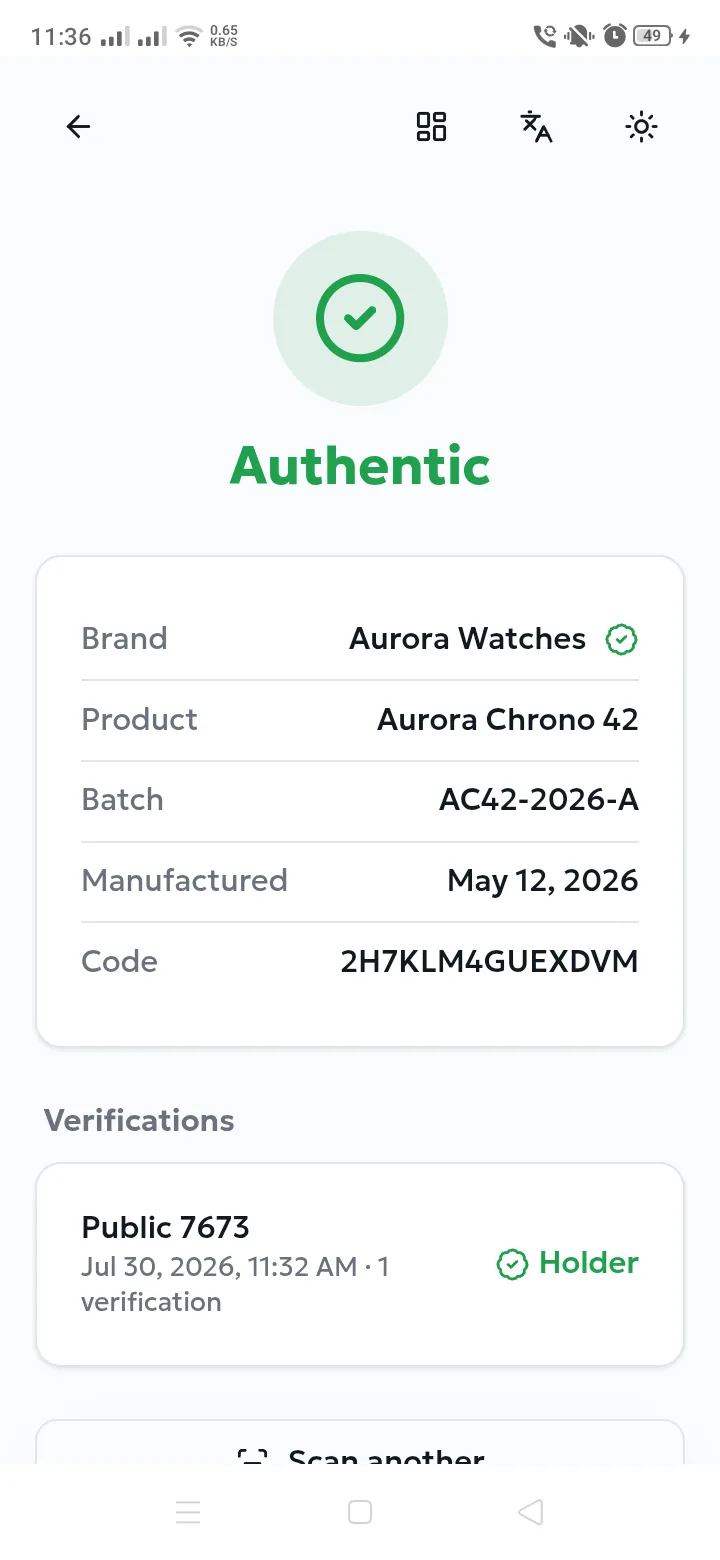
Section titled “Scan and read the result”Tap Verify code and point the camera at the QR code — recognition is automatic. If the code is damaged, type the printed characters instead.
| Result | Meaning | Do |
|---|---|---|
| Authentic | Genuine, nothing unusual. | Proceed. |
| Authentic + verified an unusual number of times | The code has passed the brand’s ceiling — a strong sign it has been copied onto fakes. | Treat with suspicion and tell the brand. |
| Authentic + held by another verifier | Someone else still holds custody. | Ask them to transfer it to you. |
| Authentic + verified multiple times | You have scanned this exact code before. | Normal for your own stock; odd for a new item. |
| Non Authentic | The code does not exist, or the brand has withdrawn it. | Do not trust the item. |
| Not allowed to verify this code type | Your profile does not match the code’s type. | Switch profile — the item may be fine. |
Check a document
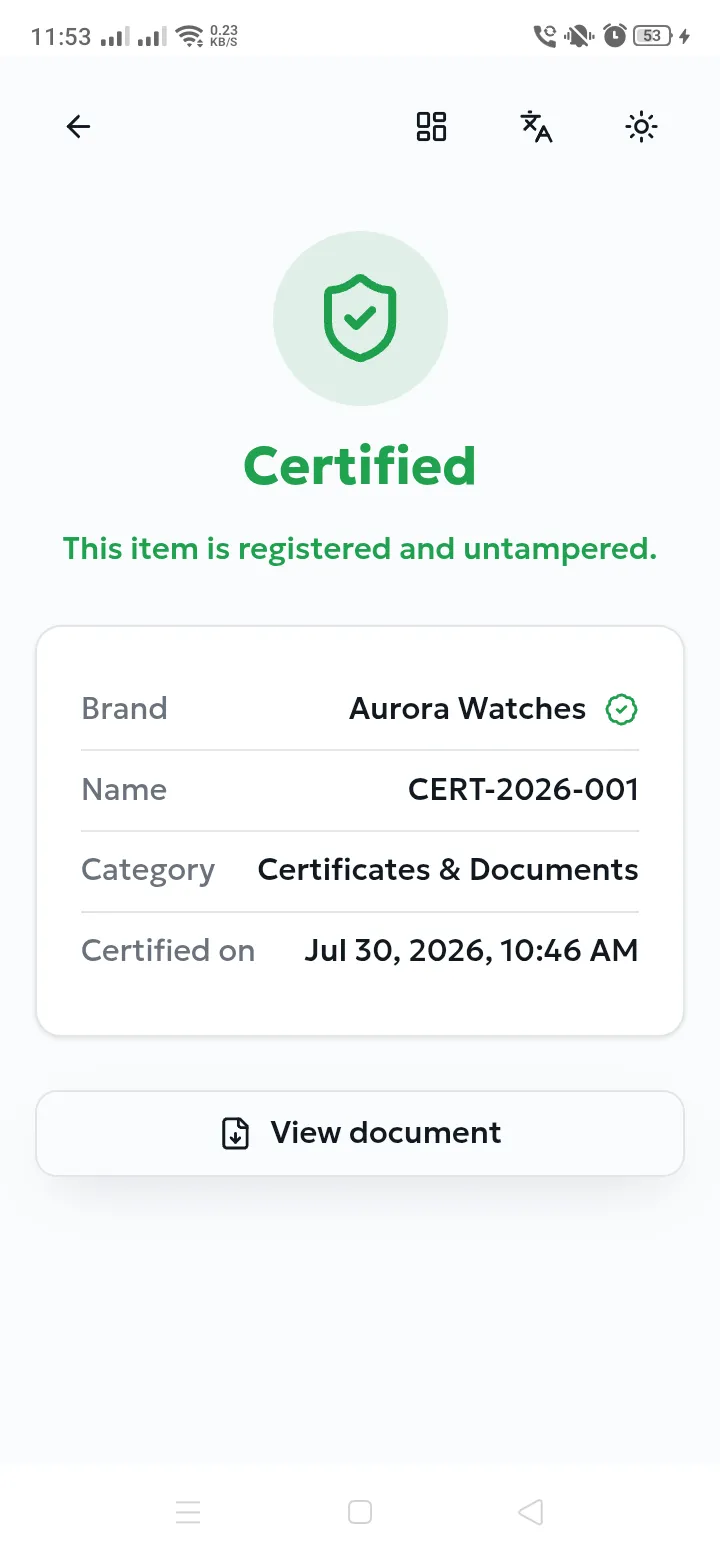
Section titled “Check a document”Choose Verify content, then pick a file from your device or paste a public link. Certified means the file is registered and unaltered — change one character and it no longer matches. A file from your device is fingerprinted locally and never uploaded.