 AuthPlus
 Guía del propietario de marca
Registrar marcas, productos y contenidos; emitir códigos; imprimir etiquetas; seguir las verificaciones.
Contenido
- Introduction
- Core concepts
- Ownership
- Roles & permissions
- Creating an account
- Signing in
- Managing your profile
- Getting started
- Requirements
- Installation & access
- Dashboard tour
- Brands
- Products
- Assets
- Contents
- Issuing codes
- Labels & exports
- Managing verifiers
- Operations
- Warnings
- Security
- Data & privacy
- Notifications
- Troubleshooting
- Frequently asked questions
- Glossary
- Support
Introduction
What AuthPlus does
Section titled “What AuthPlus does”Counterfeiting works because a buyer cannot tell a real item from a convincing copy. AuthPlus closes that gap. A brand registers what it produces, and AuthPlus mints a unique, tamper-proof code for every unit. The code is printed on the product, its label or its certificate. Anyone holding the item can scan that code and receive an immediate, unambiguous answer: Authentic, Authentic with a warning, or Non Authentic.
Every scan is recorded, so the brand sees where and when its products are being checked, and unusual patterns — the same code verified far more often than a single physical item ever could be — surface automatically as warnings.
Protect
Register brands, products, valuables and documents, then issue unique authenticity codes for them.
Verify
Anyone can confirm authenticity in seconds with the mobile app or a web browser — no account required.
Monitor
Follow every verification and transfer on a live audit trail and map, with automatic alerts on abuse.
AuthPlus is delivered as two connected experiences that share one account system:
- The dashboard (
/dash) — a web workspace where brand owners register their catalogue, issue codes, print labels and monitor activity. - The verification app (
/verify) — a deliberately simple scanning experience, available as an Android app and in any web browser, used in shops, at customs, or by end customers.
Conventions used in this document
Section titled “Conventions used in this document”- Names of on-screen elements appear like this: Issue Codes. They match the English interface exactly; in French or Arabic the label is translated but the position is identical.
- Sequences of navigation are written Products → New.
- Technical values — addresses, file names, settings — appear as
code. - Numbered procedures always follow the same shape: purpose, prerequisites, the steps, then the expected result.
- A role badge next to a heading means the feature is limited to that role: Standard user Admin Superadmin Verifier
Three kinds of callout are used:
Core concepts
The protection chain
Section titled “The protection chain”Everything you protect in AuthPlus follows the same five-level chain. Understanding it makes every screen in the dashboard predictable, because each level is simply a list of the level below it.
| Level | What it is | Example |
|---|---|---|
| 1. Brand | The name behind your items. Everything you register belongs to a brand. | Aurora Watches |
| 2. Subject Product · Asset · Content | The thing you protect, or a category of them. Its type decides how it is verified. | Aurora Chrono 42 |
| 3. Item | A concrete unit: a production batch, one individual valuable, or one document entry. | Batch AC42-2026-A |
| 4. Issuance | One act of minting codes for an item. An item can have several issuances over time. | 10 Public codes, 30 July 2026 |
| 5. Code | A single unique authenticity code, printed as text and as a QR code. | 2H7KLM4GUEXDVM |
In the dashboard you walk down this chain by clicking: a brand’s products, a product’s batches, a batch’s issuances, an issuance’s codes. Breadcrumbs at the top of each screen show you where you are and let you climb back up.
The three kinds of subject
Section titled “The three kinds of subject”A subject’s type is chosen when you create it and cannot be changed afterwards. It determines which section of the dashboard the subject lives in, how codes are issued for it, and what a verifier sees when it is scanned.
| Products | Assets | Contents | |
|---|---|---|---|
| For | Manufactured goods produced in quantity | Unique valuables: art, jewellery, collectibles | Files: certificates, official documents, media |
| Item means | A production batch | One individual piece | One document entry |
| Codes per item | Many — one per physical unit | Normally one | One per uploaded file |
| Issued by | Choosing a quantity | Choosing a quantity | Uploading files — each file becomes one code |
| Verified by | Scanning the printed code | Scanning the code on the certificate | Scanning the code, or checking the file itself |
| Verifier sees | Brand, product, batch, dates, scan history | An ownership certificate with its provenance | A certification record and the document |
Authenticity codes and code types
Section titled “Authenticity codes and code types”A code is a short random string, unique across the platform, printed as text and encoded in a QR code. Codes are not sequential and cannot be guessed from one another.
Every code belongs to a code type, chosen at issuance. Code types are configured centrally for the whole platform and typically follow the distribution chain:
| Code type | Intended for | Typical placement |
|---|---|---|
| Public | End customers. The default. | Visible on the product or its packaging |
| Reseller | Distributors and retail partners | On the carton or delivery documents |
| Control | Internal inspection and enforcement | Hidden or restricted placement |
Verifiers and verifier types
Section titled “Verifiers and verifier types”A verifier is the identity under which a scan is recorded — a shop, an employee, an inspector, or simply an anonymous consumer device. Verifiers are not dashboard user accounts; they exist so that an item’s history is meaningful, and so that custody can be tracked as goods move.
Each verifier belongs to a verifier type, which decides how it behaves:
- Public — created automatically on first launch of the app. No credentials, no setup. This is what an ordinary customer uses without ever noticing.
- Reseller — for trade partners; also self-provisioning, but tied to reseller codes.
- Control — restricted inspection accounts. These are created by the platform administrator and handed out with a username and password (see Control verifiers).
Verifier types can also require the device’s location before a scan is accepted, restrict a verifier to codes created by a particular owner, or fill in the verifier’s profile automatically from the device.
What a verification produces
Section titled “What a verification produces”Every scan — successful or not — creates an operation: a permanent line in the audit trail recording what was scanned, by which verifier, when, from where, and with what result. Operations are what feed the dashboard’s statistics, the map, and the warning system.
The verdict falls into one of three classes:
| Verdict | Meaning | What to do |
|---|---|---|
| Authentic | The code exists, is active, and nothing about the scan is unusual. | Proceed with confidence. |
| Authentic, with a warning | The code is genuine, but the circumstances deserve attention — most often because it has been verified more times than a single item plausibly would be. | Treat with care; the item may be genuine while its code has been copied. |
| Non Authentic | The code does not exist, or it has been blocked or archived. | Do not trust the item. Report it to the brand. |
The exhaustive list of outcomes, with the exact message shown for each, is in §12 Verdict reference.
Archiving — nothing is ever deleted
Section titled “Archiving — nothing is ever deleted”AuthPlus is an evidence system, so records are not destroyed. Instead of deleting a brand, product, item, issuance, code or verifier, you archive it. An archived record stays visible (behind the Archived filter), keeps its history, and can be restored.
Archiving has one immediate, deliberate consequence:
Use it deliberately: archiving a brand silently disables every code beneath it. When you only need to stop one batch, archive that issuance rather than anything higher up the chain.
Ownership
Every record in AuthPlus has an owner — the user account that created it. Ownership is the boundary of visibility: a standard user sees their own brands, subjects, items, codes, verifiers, operations and warnings, and nothing belonging to anyone else. Administrators can widen that boundary deliberately with the owner filter (The owner filter).
Roles & permissions
Who can do what, and why you may not see a screen that this documentation describes.
The four actors
Section titled “The four actors”AuthPlus separates the people who check items from the people who manage them. Only the latter have accounts.
- Verifier — no account
- Anyone using the verification app. Identified by a verifier profile on their device rather than by a login. Ordinary customers get one automatically; trade and inspection profiles are issued with a username and password. A verifier can scan, view the verdict, transfer custody and see the history of their own scans. They have no access to the dashboard.
- Standard user — the default account
- A brand owner. Sees and manages only what they own: their brands, products, assets, contents, items, issuances, codes and verifiers, plus the operations and warnings those generate. This is the role every self-registered account receives.
- Administrator
- Everything a standard user can do, but across all owners, plus user management, global settings, the prohibited-name blocklist, brand-badge approvals and the full warning queue.
- Superadministrator
- A single platform-operator account created when the server is first started. Adds the platform-wide catalogue — code types, print templates and verifier types — and maintenance actions. It is never listed in Users and cannot be modified by administrators.
Permissions matrix
Section titled “Permissions matrix”● full access ◐ limited — see note — no access
| Capability | Verifier | Standard | Admin | Super |
|---|---|---|---|---|
| Verify codes, files and links | ● | ● | ● | ● |
| Transfer custody of a code | ● | ● | ● | ● |
| Sign in to the dashboard | — | ● | ● | ● |
| Create & manage brands, subjects, items, issuances, codes | — | ◐ own | ● any owner | ● |
| Generate PDF / CSV label documents | — | ◐ own | ● | ● |
| Create & manage verifier accounts | — | ◐ permitted types only | ◐ permitted types only | ● all types |
| View operations (audit trail & map) | — | ◐ own | ● all | ● |
| View warnings | — | ◐ own over-verified only | ● all kinds | ● |
| Request a brand verification badge | — | ● | ● | ● |
| Approve, reject or revoke a badge | — | — | ● | ● |
| Switch the owner filter (see other owners’ data) | — | — | ● | ● |
| Create users & change roles | — | — | ◐ Standard/Admin only | ◐ Standard/Admin only |
| Archive / restore a user account | — | — | ◐ not self | ◐ not self |
| Global settings (ceilings, label footer) | — | — | ● | ● |
| Prohibited-name blocklist | — | — | ● | ● |
| Code types, print templates, verifier types | — | ◐ read-only | ◐ read-only | ● |
| Enable / disable interface languages | — | — | — | ● |
Two rules constrain administrators, by design:
- You cannot change your own role or archive your own account. This prevents an administrator from accidentally locking everyone out of the platform. Ask another administrator.
- The superadministrator is untouchable. It does not appear in the user list and cannot be demoted, archived, or created from the interface.
How scope works
Section titled “How scope works”Every list in the dashboard is filtered by the owner scope in force. For a standard user that scope is fixed to their own account and cannot be changed. For an administrator it is chosen in the sidebar and applies everywhere at once — lists, statistics, the map, warnings and the global search. See §27 The owner filter.
Creating an account
Accounts are needed only for the dashboard. Verifying items never requires one.
Registering yourself
Section titled “Registering yourself”Purpose. Create your own brand-owner account and reach the dashboard for the first time.
Prerequisites. An email address you can read right now, and a password of at least 8 characters.
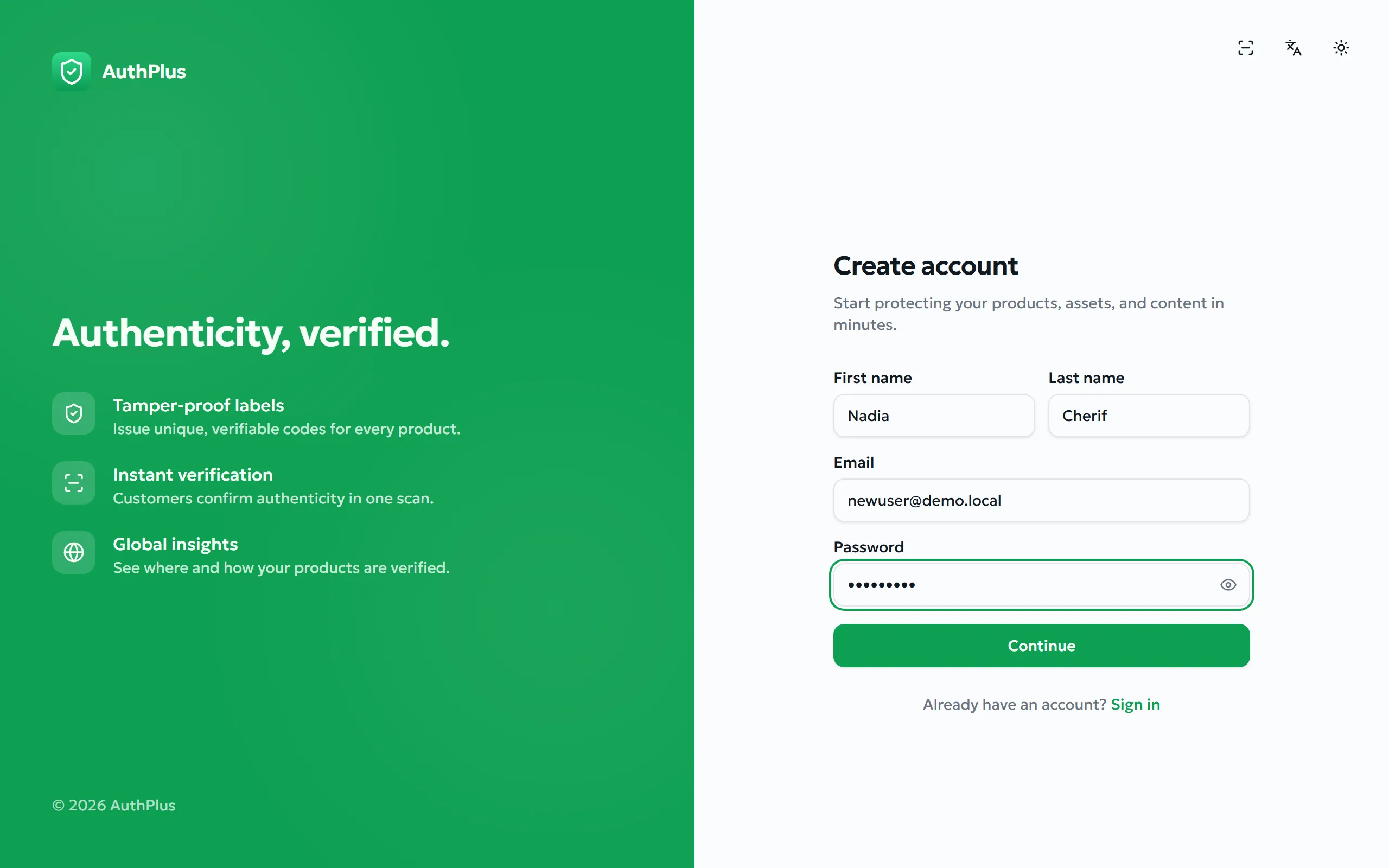
- Open the AuthPlus website and choose Get started, then Create account. You can also go straight to
/signup. - Fill in First name, Last name, Email and Password, then submit the form.
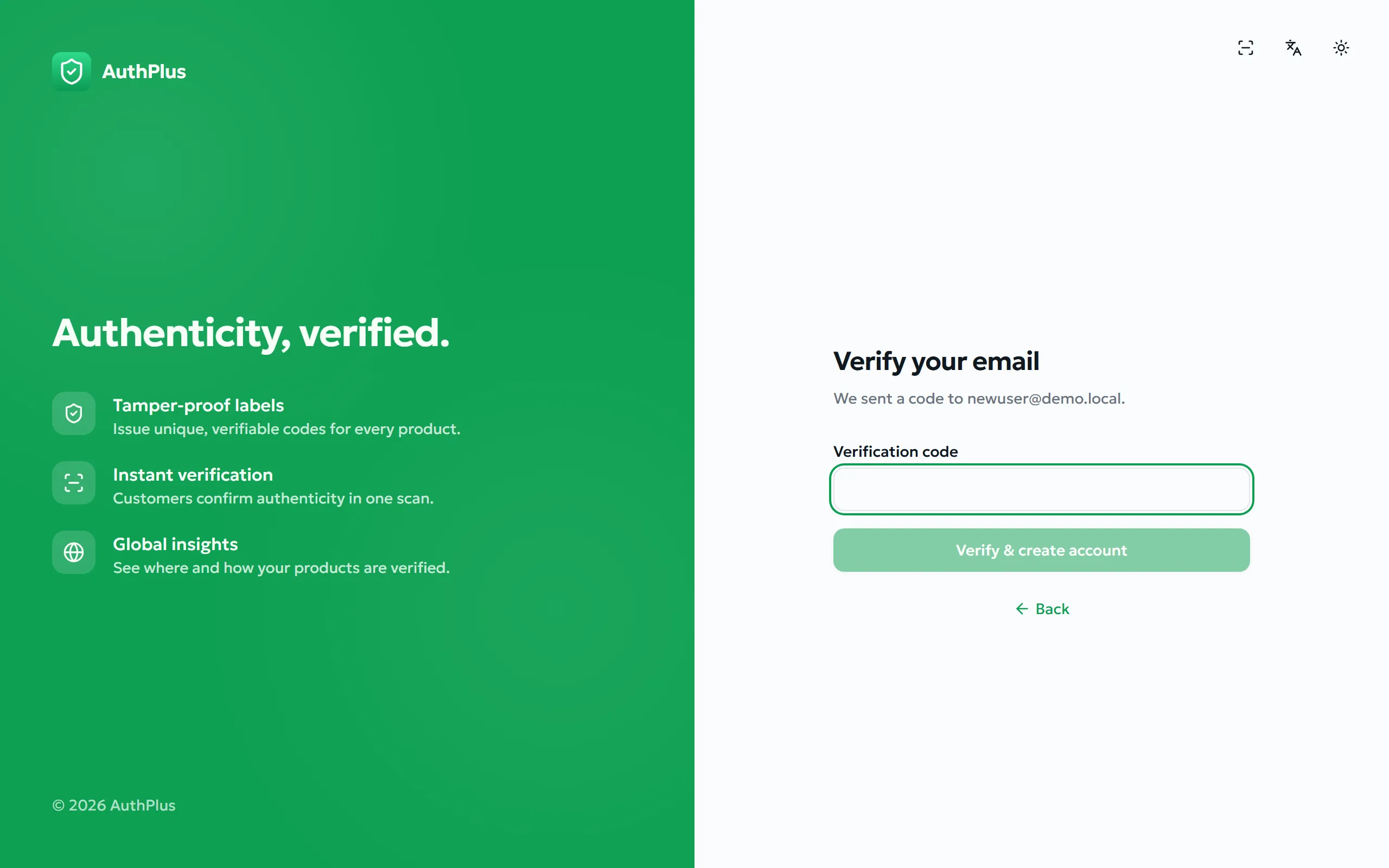
- AuthPlus emails you a 6-digit verification code. Check your inbox — and your spam folder if it does not arrive within a minute or two.
- Type the code into Verification code and choose Verify & create account.
Expected result. The account is created, you are signed in immediately, and you land on the dashboard Overview with empty statistics. Your role is Standard user.
Rules and limits
Section titled “Rules and limits”| Item | Rule |
|---|---|
| Password | Minimum 8 characters. No other requirement is enforced — no obligatory digits, symbols or mixed case, and no maximum length. |
| Must be a valid address and must not already be registered. | |
| Verification code | 6 digits, valid for 10 minutes, and accepted for at most 5 attempts. |
| Names | First and last name are both required. |
| Role | Always Standard user. Only an administrator can grant the Admin role afterwards. |
Common errors
Section titled “Common errors”| Message | Meaning | Resolution |
|---|---|---|
| An account with this email already exists | The address is already registered. | Sign in instead, or use Forgot password if you cannot remember it. |
| Invalid or expired code | One message covers every failure: wrong digits, more than 10 minutes elapsed, or five wrong attempts. | Restart the sign-up form to have a fresh code sent. |
| Password must be at least 8 characters | The password is too short. | Lengthen it and submit again. |
| A valid email is required | The address is malformed. | Correct the typo — a domain and an @ are required. |
| Challenge verification failed | An invisible anti-bot check did not complete, usually after the page has been left open a long time. | Reload the page and submit again. See The invisible anti-bot check. |
Accounts created for you by an administrator
Section titled “Accounts created for you by an administrator”Organisations usually create accounts centrally instead of letting staff self-register. In that case an administrator creates the account with an initial password and passes it to you directly (see §28 User management).
Signing in
Two ways in — a password, or a single-use code by email — plus recovery if you are locked out.
With your password
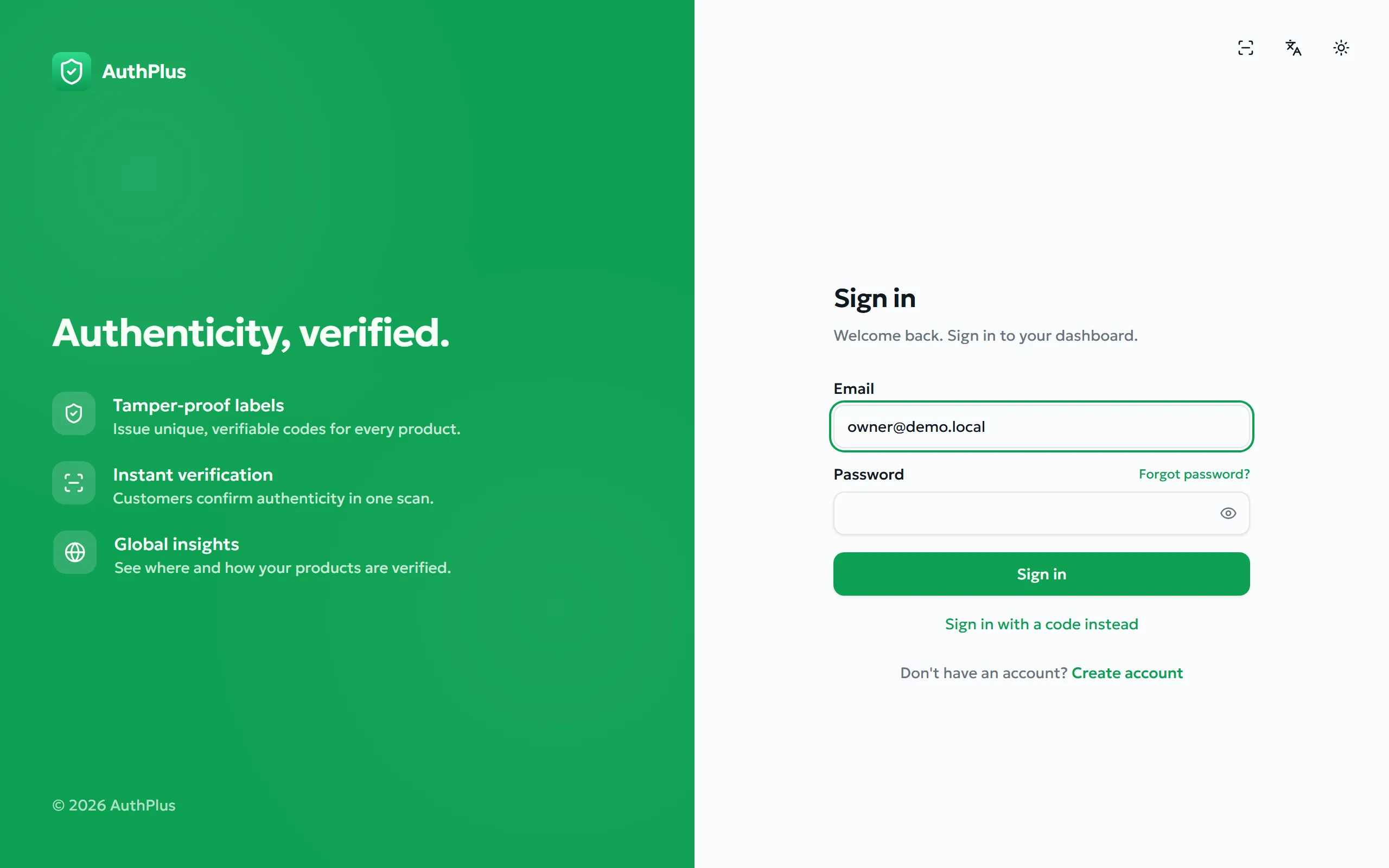
Section titled “With your password”- Go to
/signin, or choose Get started on the website. - Enter your Email and Password.
- Select Sign in.
Expected result. You arrive on the dashboard. If you were sent to the sign-in page from a deeper link, you return to that page instead.
With a one-time email code
Section titled “With a one-time email code”Purpose. Sign in without typing a password — useful on shared or unfamiliar devices, or if you never set a memorable password.
- On the sign-in page choose Sign in with a code instead.
- Enter your email address and choose Send code.
- Read the 6-digit code from your inbox and enter it.
Expected result. You are signed in exactly as with a password. The code is then consumed and cannot be reused.
Forgotten password
Section titled “Forgotten password”- On the sign-in page select Forgot password?
- Enter your email address and request the code.
- Enter the emailed code and your new password (at least 8 characters).
Expected result. The password is replaced and you can sign in with it immediately.
Staying signed in, and signing out
Section titled “Staying signed in, and signing out”AuthPlus keeps you signed in across restarts of the browser or the mobile app; your session is renewed silently in the background, so you should not be interrupted while working. To end a session, open the avatar menu at the top-right and choose Sign out.
Managing your profile
Everything you can change about your own account, from the avatar menu → Profile.
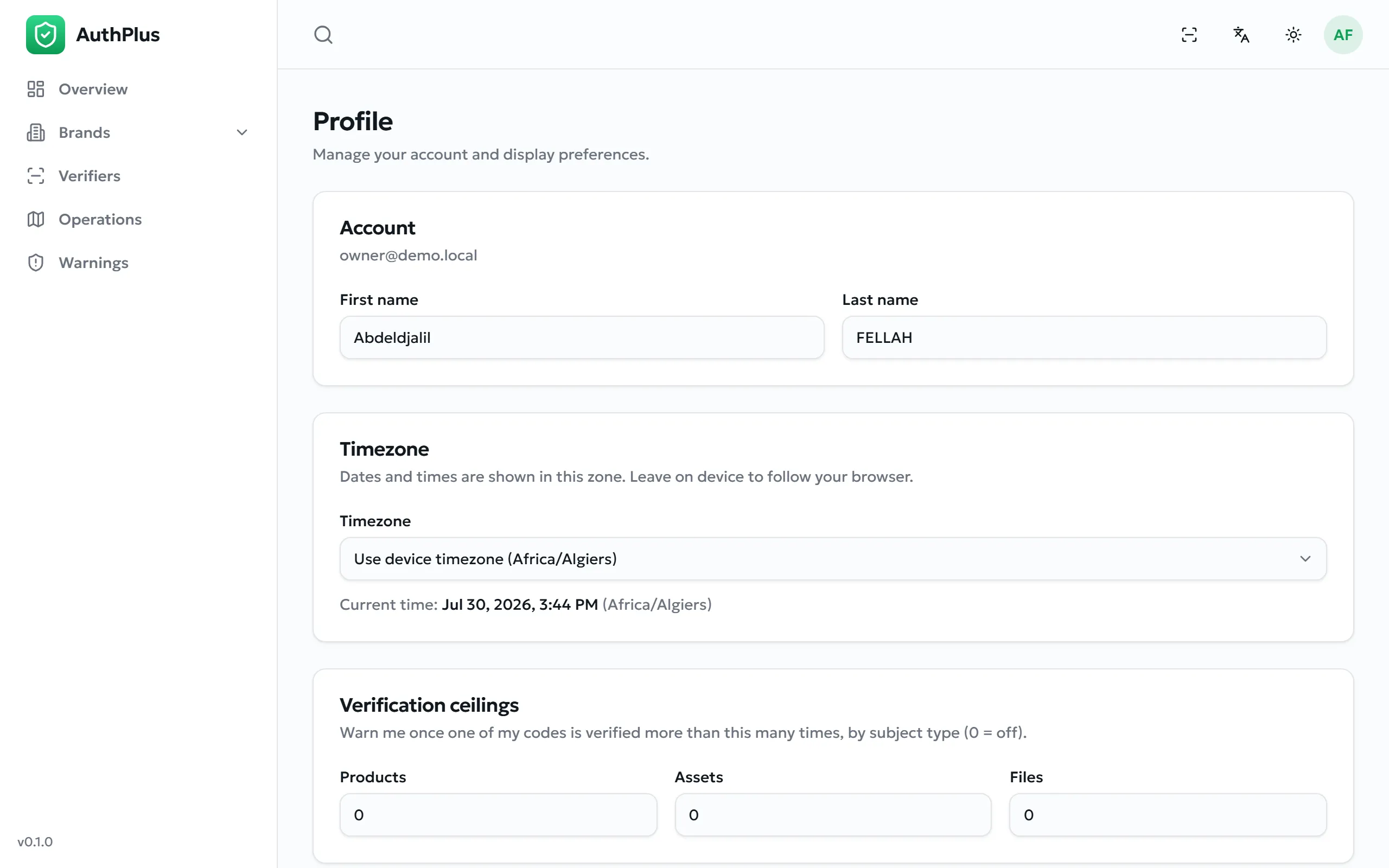
Name and timezone
Section titled “Name and timezone”Your first and last name are what other users see beside the records you create — for example in the Created by column of the operations list. Both are required.
The Timezone setting governs every date and time displayed in the dashboard: operations, warnings, issuance dates, everything. Set it to the zone you actually work in so that “10:32” means what you expect. A live clock next to the field shows the current time in the selected zone.
Your verification ceilings
Section titled “Your verification ceilings”A ceiling is the number of times one of your codes may be verified before AuthPlus raises an over-verified warning. It is the main automatic anti-counterfeiting signal: a genuine item is normally checked a handful of times, while a code copied onto a thousand fakes is checked constantly.
| Field | Applies to | Default |
|---|---|---|
| Max verifications — products | Codes on product batches | 25 |
| Max verifications — assets | Codes on individual valuables | 25 |
| Max verifications — files | Codes certifying documents | 0 (disabled) |
Setting a value to 0 disables the ceiling for that type — no over-verified warning will ever be raised. Files default to 0 because a public certificate is expected to be checked by many people.
Your personal ceiling takes precedence over the platform-wide default set by an administrator (Global settings).
Changing your password
Section titled “Changing your password”Prerequisites. Either your current password, or access to your mailbox.
- Open Profile and find the security card.
- Enter your new password (at least 8 characters).
- Prove it is you, in one of two ways:
- type your current password; or
- select the mail icon in the field to switch to Use a code instead — AuthPlus emails a 6-digit code to your own address, which you then enter. This is the route to take if you always sign in with email codes and have no password to recall.
- Save.
Expected result. The password changes immediately and you stay signed in.
Changing your email address
Section titled “Changing your email address”- In Profile, enter the new address in the Change email card.
- AuthPlus sends a 6-digit code to the new address. Read it there.
- Enter the code to confirm.
Expected result. The address is updated at once and becomes your sign-in identity. Your password is unchanged.
Common errors
Section titled “Common errors”| Message | Resolution |
|---|---|
| An account with this email already exists | Another account already uses that address. Choose a different one, or archive the other account first. |
| Invalid or expired code | Request a new code and enter the most recent one within 10 minutes. |
| Current password is incorrect | Shown when changing a password with the wrong current password. Use the emailed-code route instead if you are unsure. |
Interface language and appearance
Section titled “Interface language and appearance”The top bar carries a language selector and a light/dark theme toggle. Both apply instantly, are stored on the device, and are independent of your account — so the same user can work in French on a laptop and in English on a phone.
Choosing Arabic mirrors the entire interface to a right-to-left layout. The language you pick also becomes the default language offered when generating label documents (Labels & exports).
Getting started
Get started
Section titled “Get started”- Open the AuthPlus site and choose Create account. Enter your details, then the 6-digit code emailed to you. Passwords are 8 characters or more.
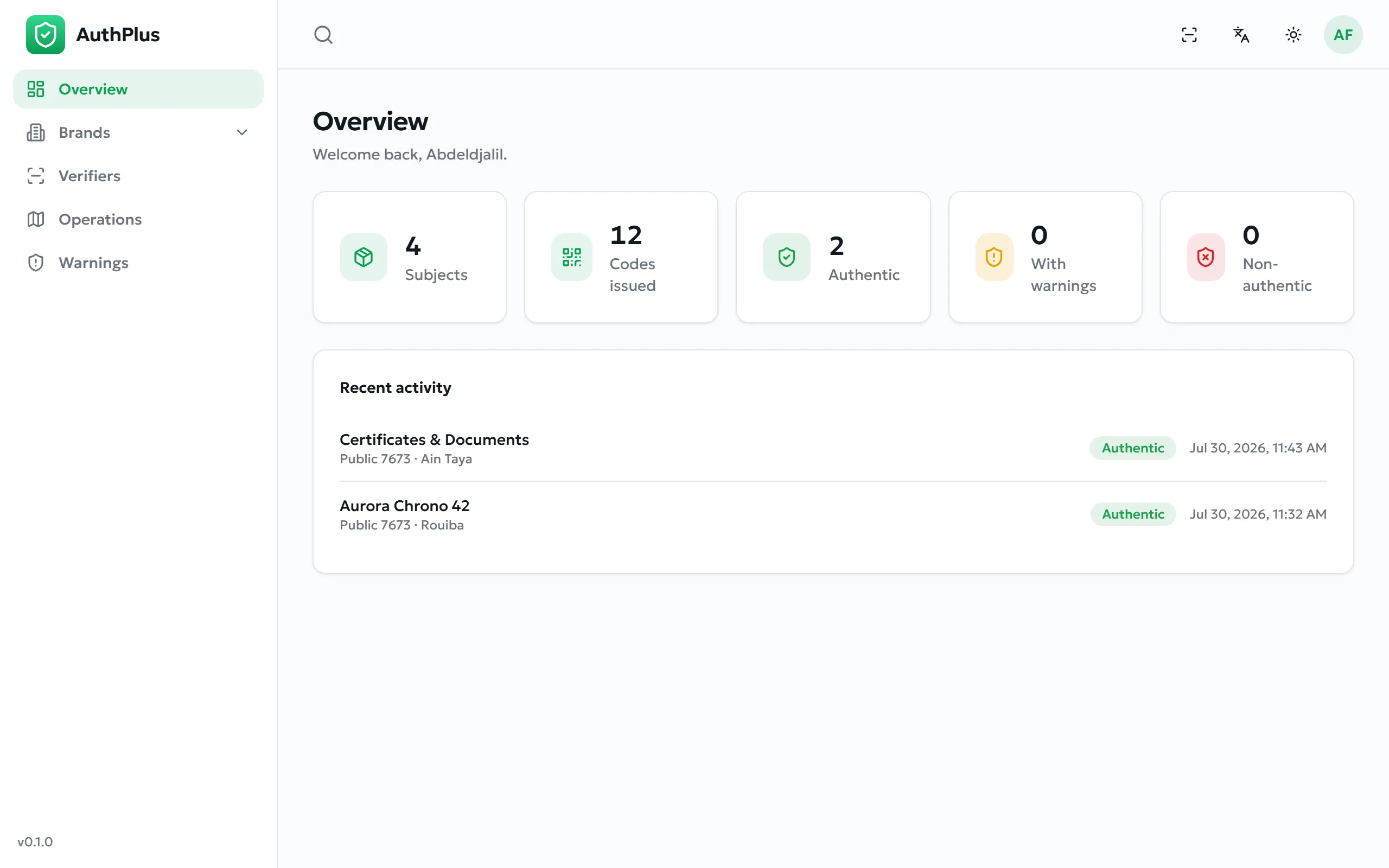
- You land on Overview: live counts of subjects, codes issued, authentic scans, warnings and failures, plus recent activity.
- Set your timezone in Profile — every date in the dashboard follows it.
From brand to printed codes
Section titled “From brand to printed codes”The core workflow, in four steps:
- Brands → New brand. Add a logo, and request the verification badge — once an administrator approves it, customers see a green check beside your name.
- Products → New: name it and pick its brand. (Assets and Contents work the same way.)
- Open the product and add an item — your own batch reference, dates and unit value.
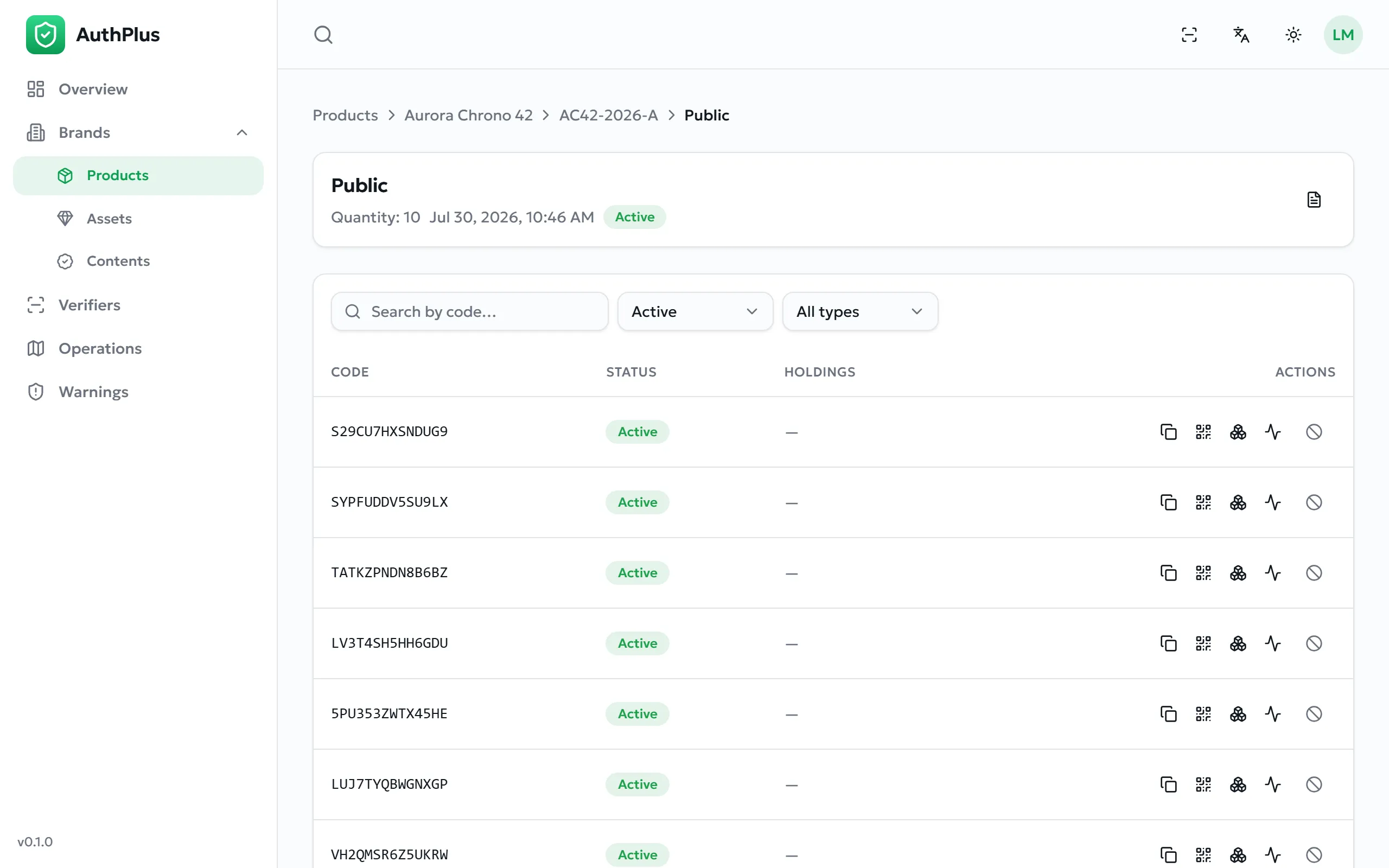
- Open the batch and choose Issue Codes: pick the code type and a quantity between 1 and 1000. For contents, upload files instead — each file becomes one certified code.
Print the labels
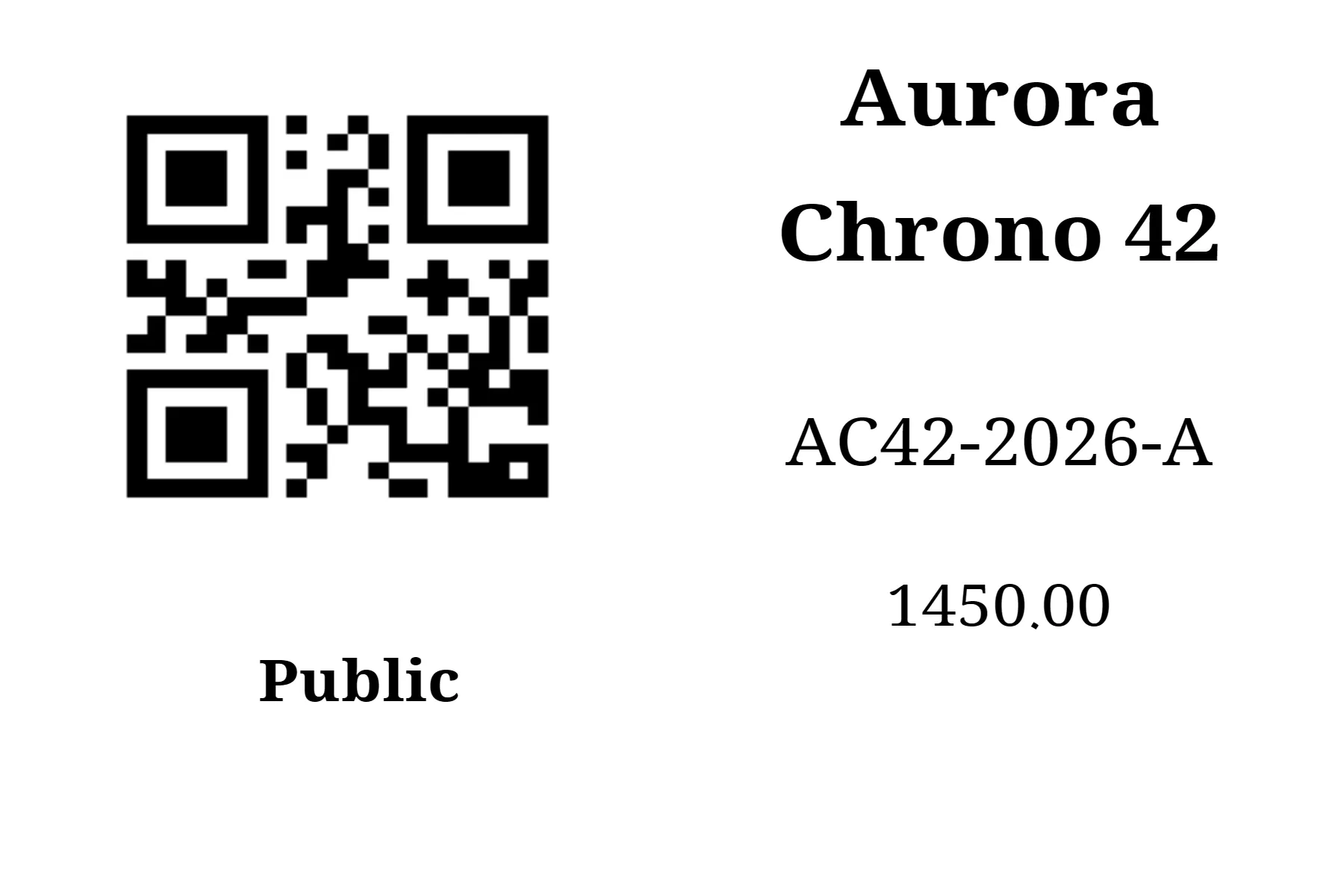
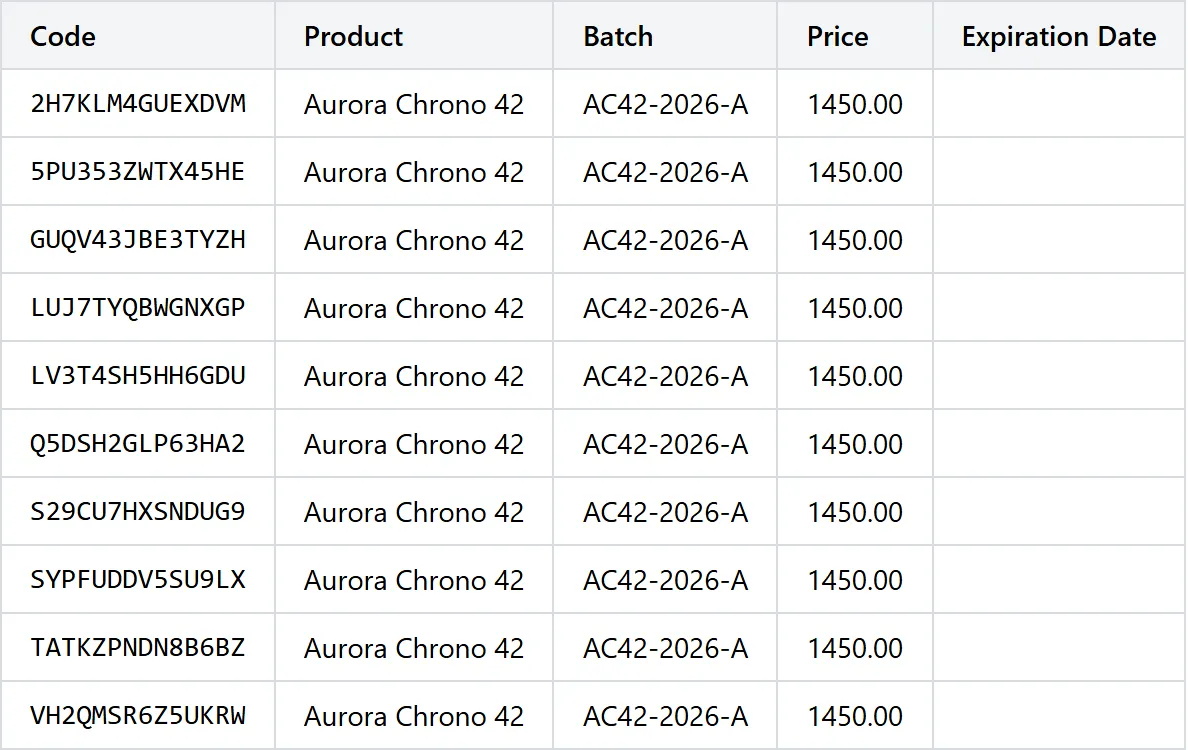
Section titled “Print the labels”Open the issuance and choose Documents. Generate a PDF — one sticker per code, with QR, product, batch, price and expiry — or a CSV listing every code for a printing partner. Both are available per language and stay downloadable afterwards.
Watch what happens
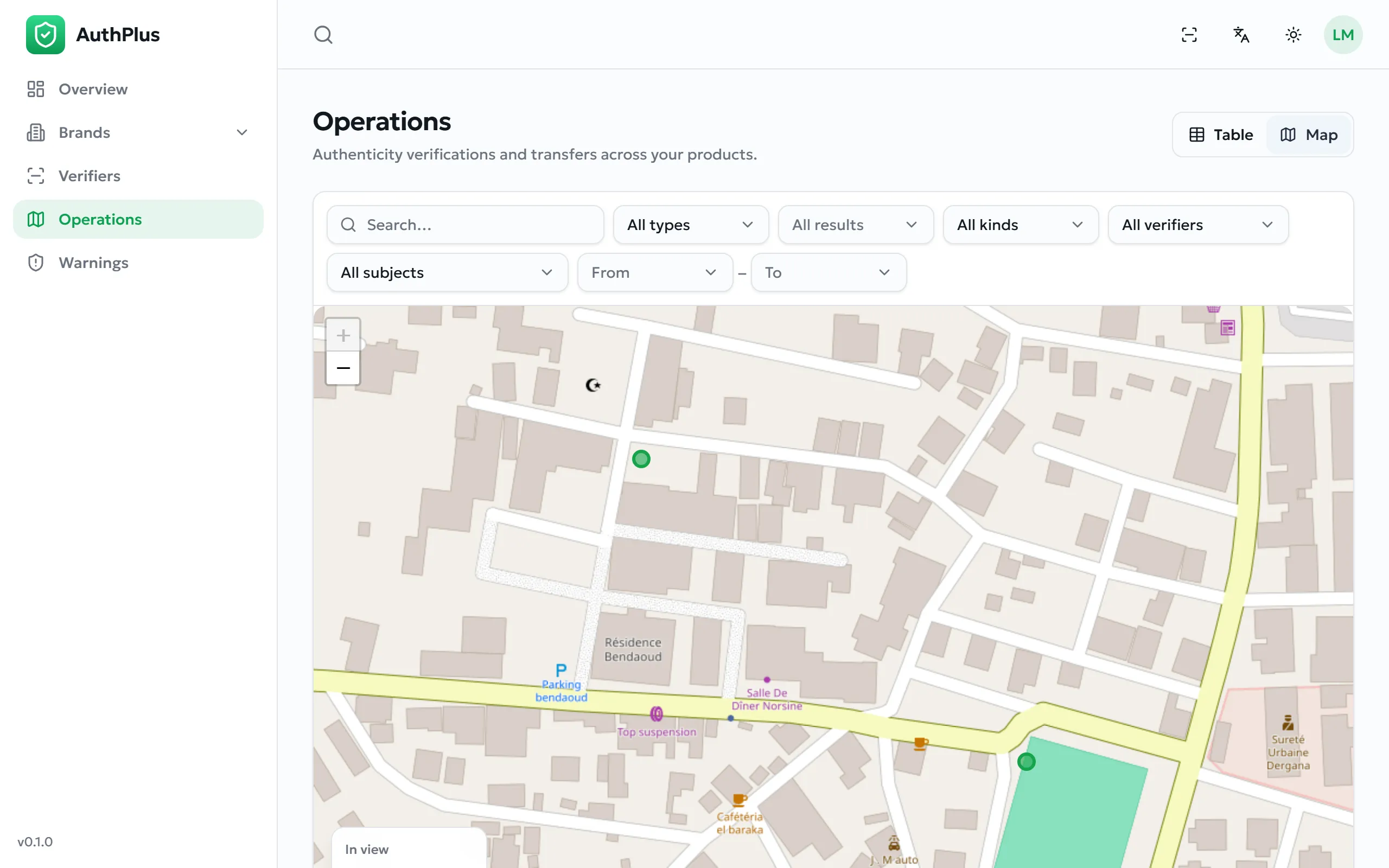
Section titled “Watch what happens”Operations lists every verification and transfer — who, when, what result and where — filterable, and plottable on a map. Look for clusters of failures in places you do not sell.
Warnings flags codes verified more often than the ceiling you set in Profile (25 by default). Review each one against Operations, then Dismiss it if the activity is legitimate, or Block the code — which archives it, so it stops verifying at once. Both decisions can be reverted.
Requirements
Any current desktop or mobile browser, kept up to date. The interface is responsive and works on a phone, though the code tables and the map are far more comfortable on a laptop.
| Browser | Minimum version |
|---|---|
| Google Chrome / Microsoft Edge | 107 |
| Mozilla Firefox | 104 |
| Safari (macOS / iOS) | 16 |
JavaScript and cookies-equivalent local storage must be enabled. No plug-ins or extensions are required.
Installation & access
Reaching the dashboard
Section titled “Reaching the dashboard”Nothing is installed. Open the AuthPlus address supplied by your organisation and choose Get started, or go straight to /dash. You will be asked to sign in (Signing in).
Moving between the two areas
Section titled “Moving between the two areas”The dashboard and the verification app are two areas of one product, and you can move between them at any time:
- In the dashboard, the scan icon in the top bar opens the verification app — useful for checking one of your own codes exactly as a customer would.
- In the verification app, the grid icon at the top opens the dashboard. You will be asked to sign in if you are not already.
On Android, the app opens on the verification screen; in a browser, the same address opens the dashboard. Both contain both areas.
Dashboard tour
Where everything lives, and what the first screen is telling you.
The Overview page
Section titled “The Overview page”
| Card | Counts |
|---|---|
| Subjects | Products, asset categories and content categories you have registered. |
| Codes issued | Every authenticity code you have minted, across all issuances. |
| Authentic | Scans that returned a clean authentic verdict. |
| With warnings | Scans that were authentic but flagged — repeat checks, custody conflicts, over-verification. |
| Non-authentic | Scans that failed: unknown codes, or codes you have withdrawn. |
Recent activity lists the five most recent verifications and transfers, each with its result and the place it happened. For the full list, use Operations.
Navigation and the top bar
Section titled “Navigation and the top bar”| Element | Purpose |
|---|---|
| Sidebar | Overview, Brands, Products, Assets, Contents, Verifiers, Operations, Warnings — and, for administrators, more (Administrator overview). |
| Warnings badge | A red count of unresolved warnings. It is hidden when there are none. |
| Search field | Searches brands, subjects, items and codes at once. Type at least two characters. |
| Scan icon | Opens the verification app, to check one of your own codes as a customer would. |
| Language / theme | Interface language and light or dark appearance. |
| Avatar menu | Profile and Sign out. |
| Version, bottom-left | The AuthPlus release you are using — quote it when contacting support. |
Patterns that repeat on every list
Section titled “Patterns that repeat on every list”- Search and filters sit above every table, including a date range on most.
- Status filter — lists show Active records by default. Switch it to see archived ones.
- Breadcrumbs at the top of detail screens climb back up the chain.
- Pagination shows 25 rows per page by default.
- Archive rather than delete — see Archiving — nothing is ever deleted.
Brands
The first thing to create: everything else hangs off a brand.
Creating a brand
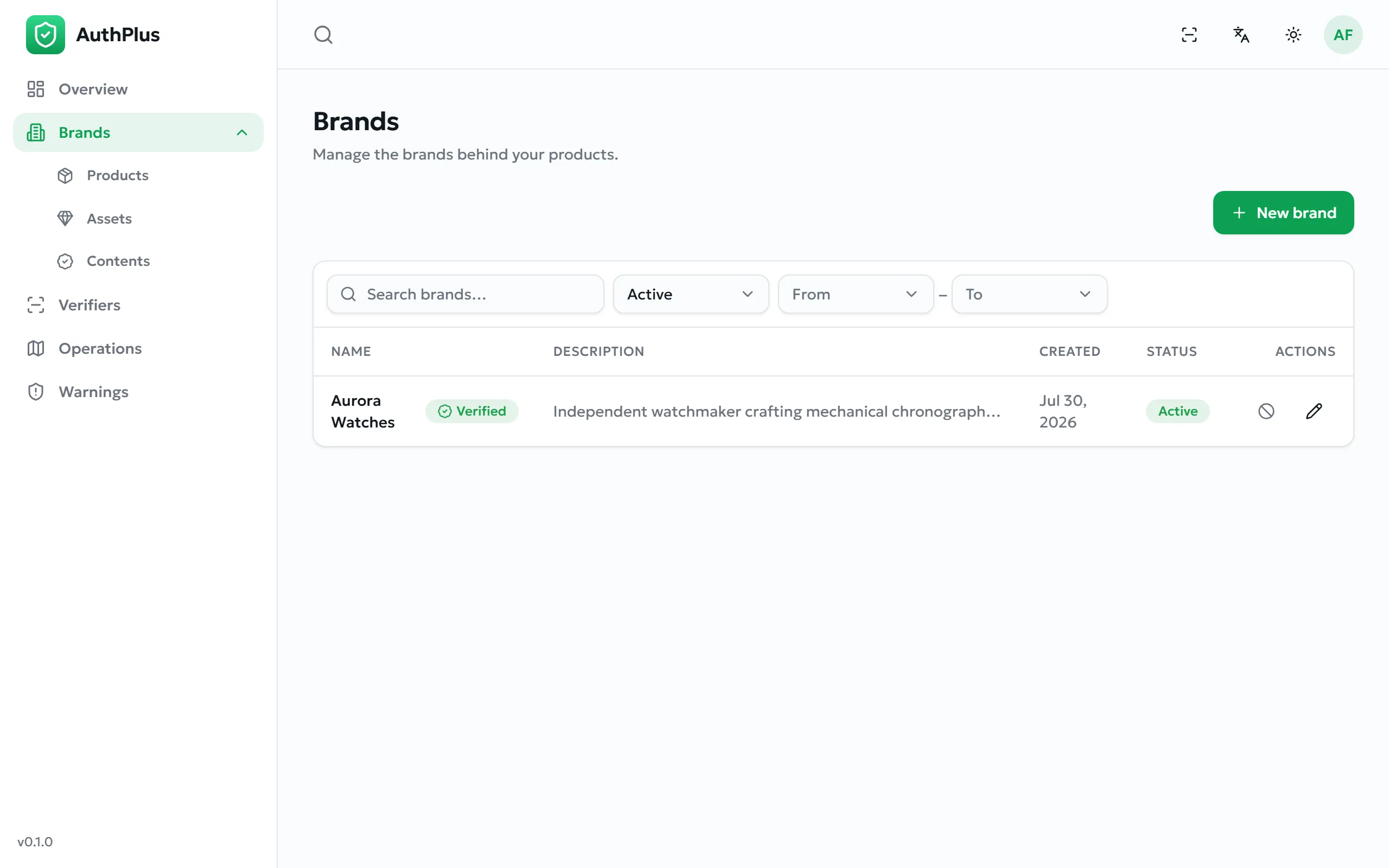
Section titled “Creating a brand”Purpose. Register the name that will appear to anyone verifying your products.
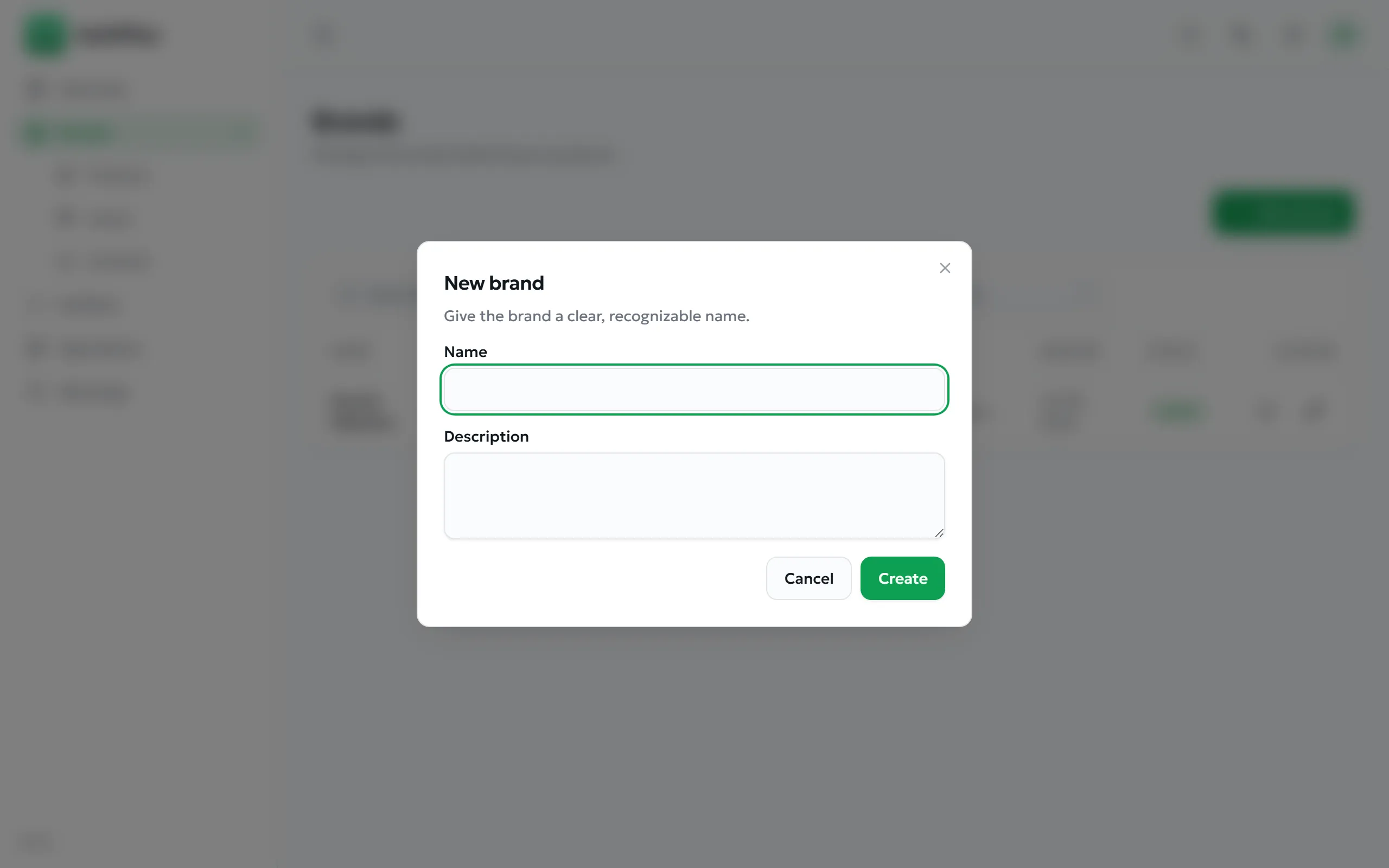
- Open Brands and select New brand.
- Enter the Name — required, and shown on every verdict screen.
- Add a Description (optional).
- Select Create.
Expected result. The brand appears in the list with status Active and can immediately be chosen when creating products.
Adding a logo
Section titled “Adding a logo”Open the brand and use Add logo. The logo appears next to the brand name on verdict screens, which is a strong trust signal for customers.
| Requirement | Value |
|---|---|
| Format | An image file. Non-images are rejected with please upload an image file. |
| Maximum size | 8 MB |
| Recommendation | A square image on a transparent or white background reproduces best at small sizes. |
Requesting the verification badge
Section titled “Requesting the verification badge”Purpose. Obtain the green check displayed beside your brand name on every verdict screen — the visible proof that AuthPlus has confirmed you are who you claim to be.
- Open the brand and choose the verification request action.
- Add a note explaining who you are, and attach supporting evidence — registration documents, trademark certificates. Images and PDFs are accepted, up to 8 MB each.
- Submit. The brand’s status becomes Pending.
Expected result. An administrator reviews the request and approves or rejects it (Brand verification). Once approved, the badge appears everywhere the brand is shown.
| Status | Meaning |
|---|---|
| None | No request has been made. No badge is shown. |
| Pending | Submitted and awaiting review. You cannot submit again while pending. |
| Verified | Approved. The green check is displayed to everyone. |
| Rejected | Declined, with a reason from the reviewer. You may correct the issue and request again. |
Common errors
Section titled “Common errors”| Message | Resolution |
|---|---|
| Brand is already verified or pending review | A request is already open, or the badge is already granted. Nothing to do. |
| Attachments must be images or PDFs | Convert the evidence to PDF or an image before attaching. |
| Name is required | Shown when saving a brand with an empty name. |
Editing and archiving a brand
Section titled “Editing and archiving a brand”Editing is immediate and affects what verifiers see from then on. Archiving is the emergency control:
Products
Manufactured goods, organised as product → batch → codes. This is the most common workflow in AuthPlus.
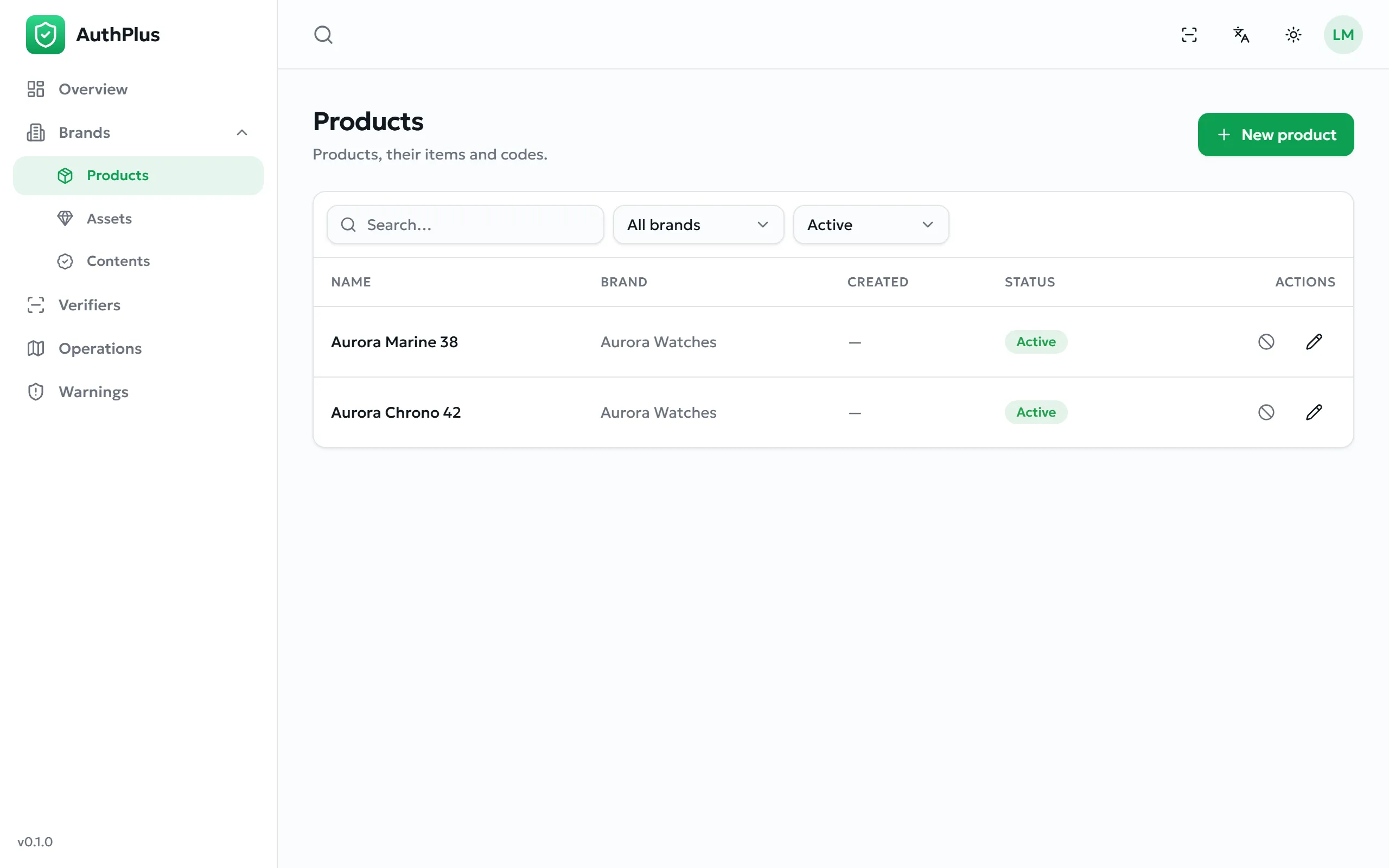
Creating a product
Section titled “Creating a product”- Open Products and select New.
- Enter the Name as customers know it — it appears on the verdict screen.
- Choose the Brand.
- Add a description (optional) and create.
Expected result. The product is listed with counts of its items and codes, both zero for now.
Adding a batch
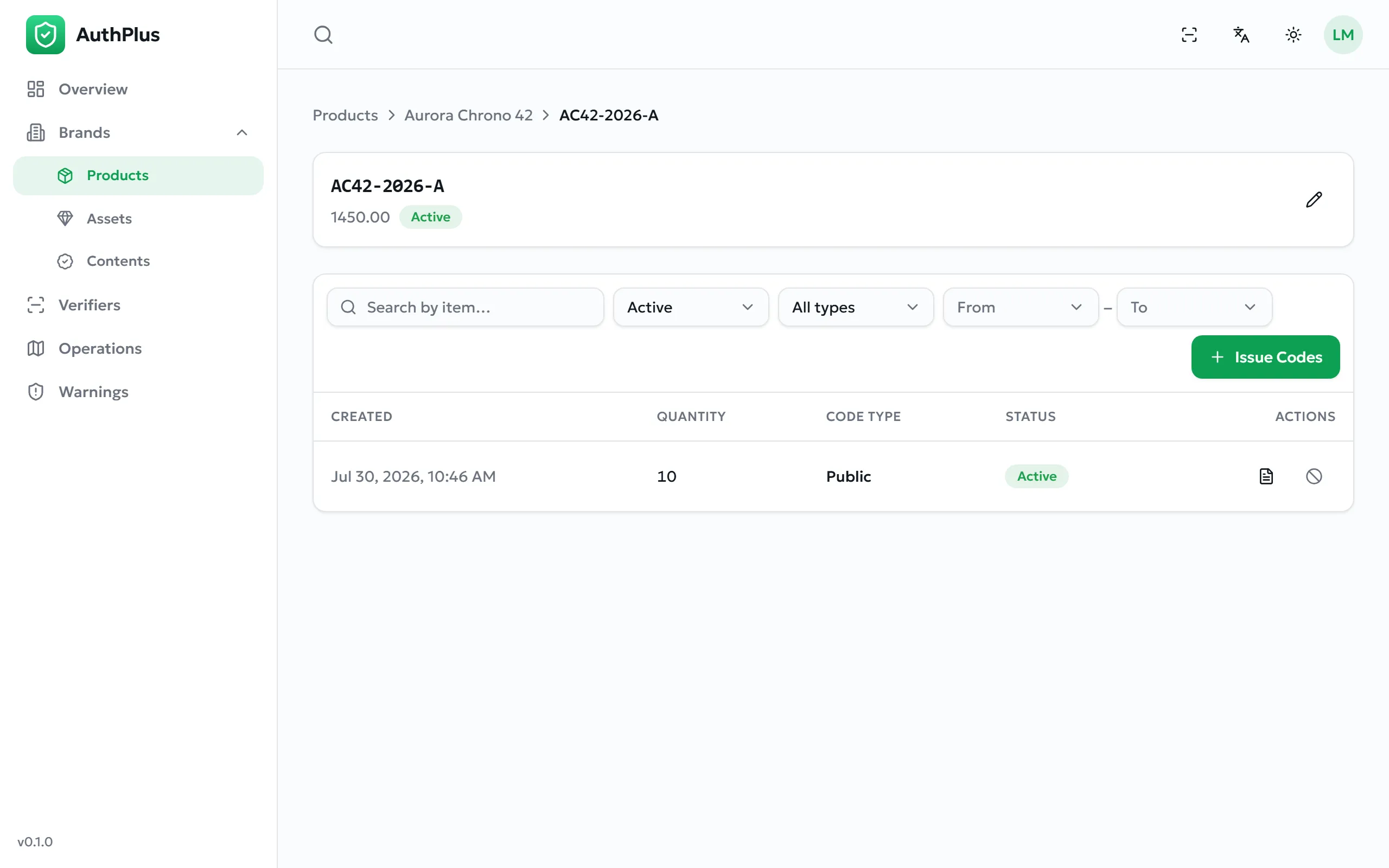
Section titled “Adding a batch”Purpose. A batch (an item) is the production run that codes will be minted for. Splitting production into batches lets you withdraw one run without touching the others.
- Open the product and add a new item.
- Enter a Reference of your choosing — your own batch or lot number, shown on the verdict screen and printed on labels.
- Optionally record the Manufacturing date, Expiration date, unit Value, and a description.
- Save.
Expected result. The batch appears under the product and can have codes issued for it.
Product images
Section titled “Product images”Products and batches accept images (up to 8 MB each), which help your team identify the right record. One image can be marked as the primary one.
Assets
Unique valuables — art, jewellery, watches, collectibles — where each piece is registered individually and carries a signed ownership certificate.
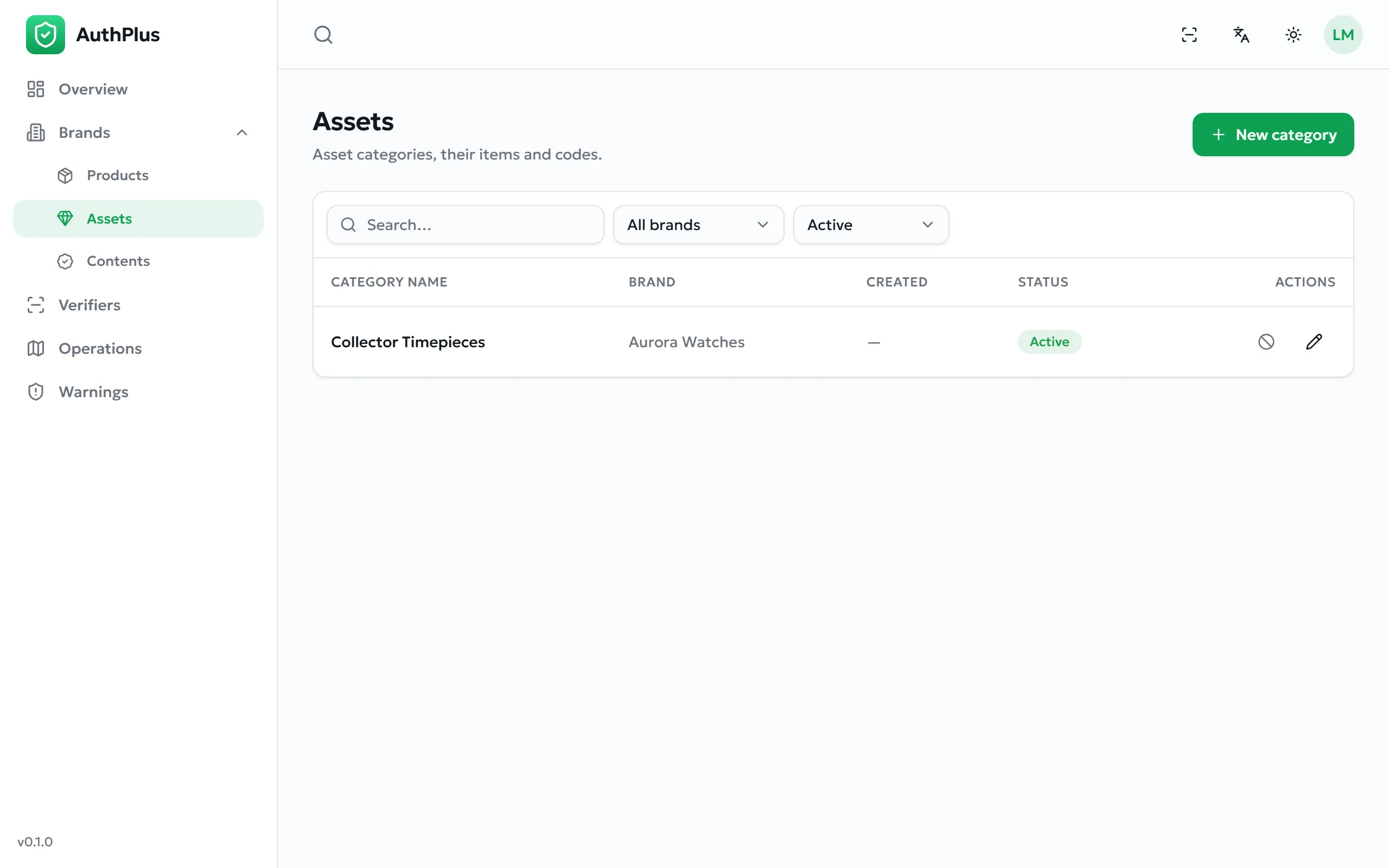
The structure mirrors products, with different meanings:
| Level | For assets | Example |
|---|---|---|
| Subject | A category of valuables | Collector Timepieces |
| Item | One individual piece | HERITAGE-1965 |
| Issuance | Normally a single code for that piece | 1 code |
- Open Assets and create a category, choosing its brand.
- Inside the category, add one item per physical piece, with its reference or serial number and its value.
- Issue a single code for it (Issuing codes) and attach the printed certificate to the piece.
Expected result. Scanning that code shows a certificate view with the certification date and the number of ownership transfers, rather than a product view.
Contents
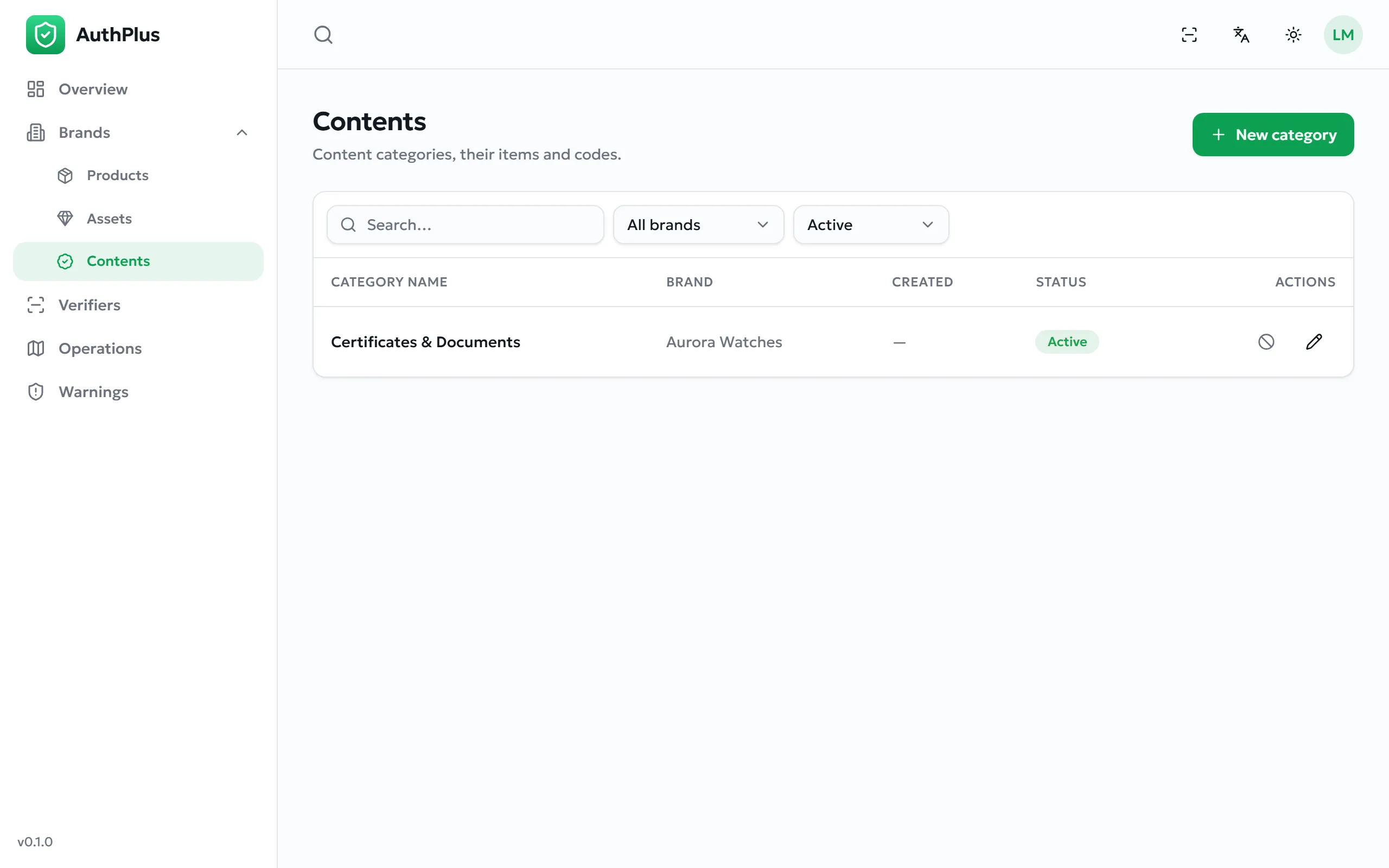
Certified files: certificates of authenticity, warranties, official documents, media. Each file becomes one code and carries a fingerprint that makes tampering detectable.
- Open Contents and create a category — for example Certificates & Documents.
- Add an item per document, with a reference and description.
- Issue codes by uploading the files themselves. Each uploaded file becomes exactly one certified code.
Expected result. The file is stored, its fingerprint recorded, and anyone can then confirm the document is genuine — by scanning its code, by checking the file directly, or by pasting a link to it (Verifying assets & documents).
Issuing codes
Minting the codes that will be printed on your goods.
Issuing codes for a product or asset
Section titled “Issuing codes for a product or asset”Prerequisites. A brand, a subject and an item must already exist.
- Open the batch (or asset item) and select Issue Codes.
- Choose the Code type — Public for anything a customer will scan.
- Enter the Quantity: between 1 and 1000 codes.
- Select Issue.
Expected result. The issuance is created instantly with that many unique codes, listed and ready to view, download or print.
Common errors
Section titled “Common errors”| Message | Resolution |
|---|---|
| Quantity must be between 1 and 1000 | Split larger runs into several issuances. |
| Item and authcode type are required | Select both before submitting. |
| File subjects require uploaded files; products and assets require a quantity | You are issuing for a content item — upload files instead of entering a quantity (Issuing codes for content). |
| Object storage is not configured | A server-side setup problem. Contact your administrator — see Troubleshooting. |
Issuing codes for content
Section titled “Issuing codes for content”- Open the content item and select Issue Codes.
- Choose the code type.
- Select the files to certify — up to 1000 files at a time, each up to 8 MB.
- Select Issue. The count of files is shown before you confirm.
Expected result. One certified code per file, each bound to that file’s fingerprint.
Working with individual codes
Section titled “Working with individual codes”Open an issuance to see its codes. Each row offers:
| Action | What it does |
|---|---|
| Copy code | Copies the code text to the clipboard. |
| QR code | Shows the QR image, with a download button for a single label. |
| Holdings | Shows which verifier currently holds the item, and since when. |
| Operations | Every scan and transfer recorded for this one code. |
| Settings | Code configuration, including ownership transfer for assets and contents. |
| Archive | Stops this single code verifying, without affecting the rest of the batch. |
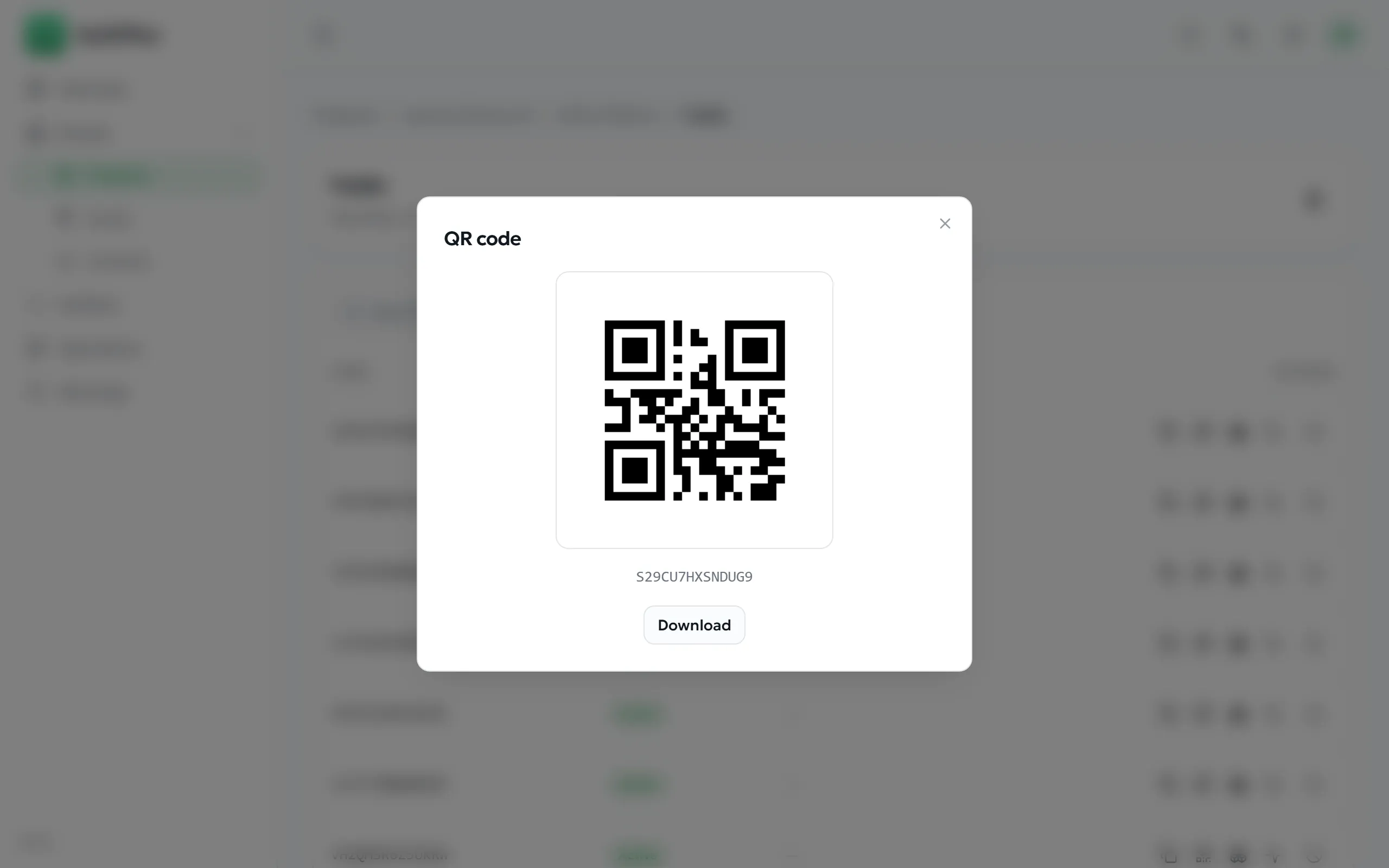
Transferring ownership of a code
Section titled “Transferring ownership of a code”Purpose. Hand an asset or a certified document to another AuthPlus account — for example when a valuable is sold to a collector who has their own account.
- Open the code’s settings from the issuance list.
- Enter the recipient’s AuthPlus account email under Transfer ownership.
- Confirm.
Expected result. The code moves to the other account, which can then manage it. The movement is recorded and contributes to the provenance count shown on the certificate.
Labels & exports
Turning codes into something you can physically print.
Generating the documents
Section titled “Generating the documents”- Open the issuance and select Documents.
- For a printable sheet: choose a Template and a Language, then Generate PDF.
- For a data file: choose a language and Generate CSV.
- Generated documents stay listed, with a download button, so colleagues can retrieve them later.
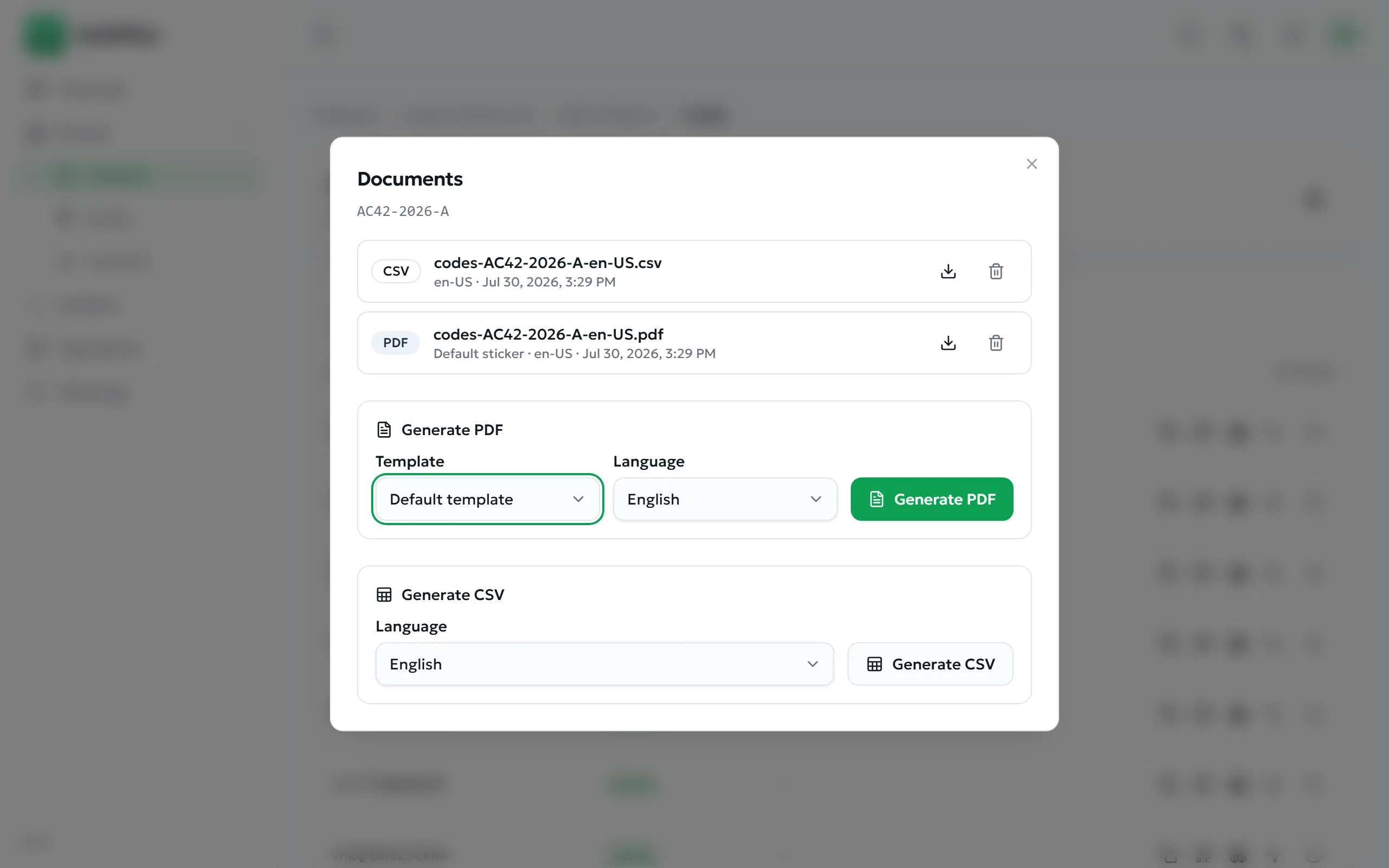
What the PDF and CSV contain
Section titled “What the PDF and CSV contain”
| PDF sticker shows | CSV columns |
|---|---|
| QR code · product or subject name · batch reference · unit value · expiry date · code type · the platform label footer text for that language | Code · Product · Batch · Price · Expiration Date — with headings translated into the language you chose |
Common errors
Section titled “Common errors”| Message | Resolution |
|---|---|
| No print template available | No label template is configured on the platform. Ask an administrator to add one (Platform configuration). |
| Kind must be pdf or csv | An internal request problem — reload the page and try again. |
| Object storage is not configured | Documents cannot be stored server-side. Contact your administrator. |
Managing verifiers
The register of who is allowed to scan your codes in the field.
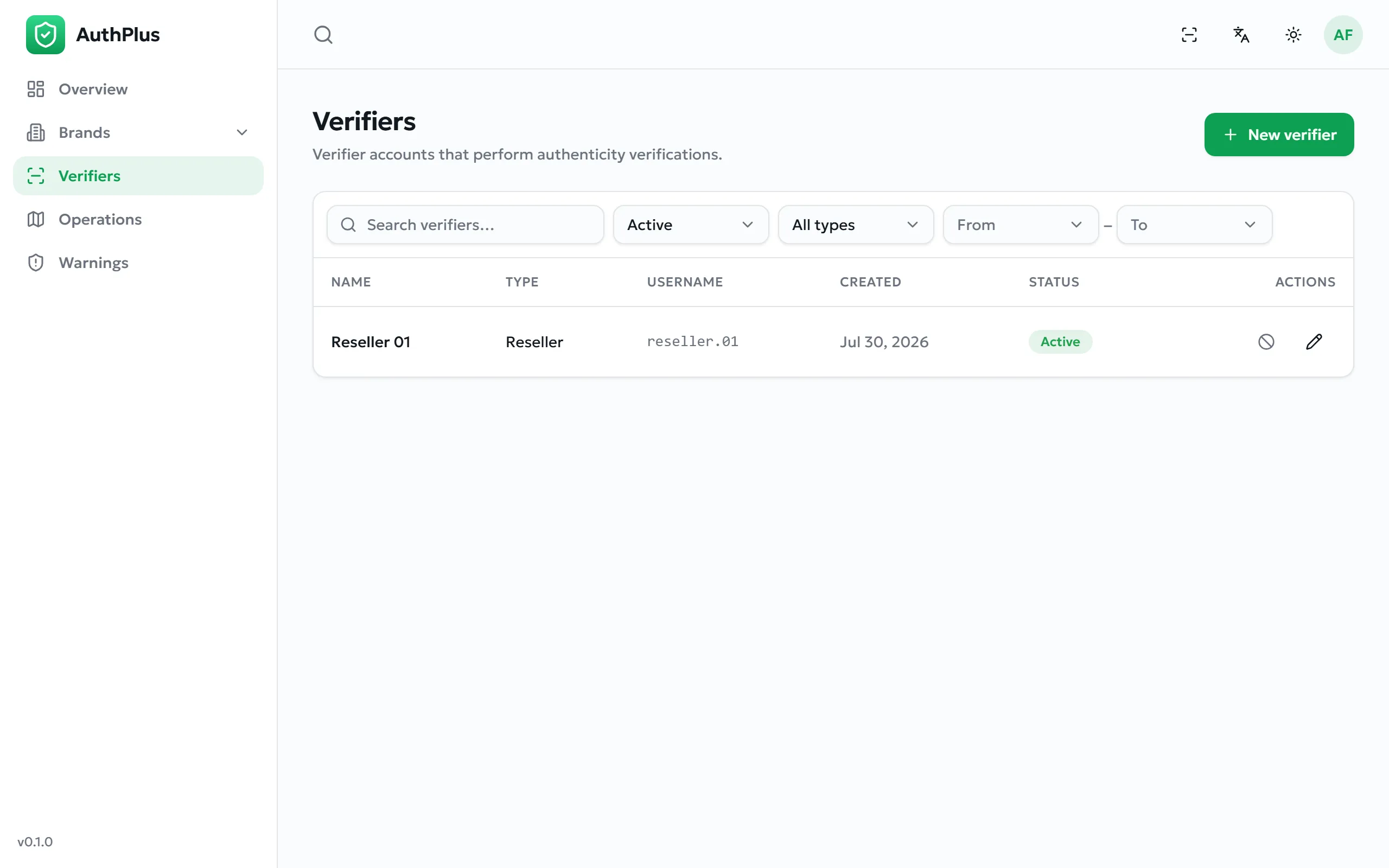
Everyday profiles — the consumer Public type and, where configured, Reseller — are created automatically by the app, so this page is mostly a register: it shows who can scan for you, their type, username and creation date.
Creating a verifier
Section titled “Creating a verifier”- Select New verifier.
- Give it a recognisable Name — this is what appears in scan histories, so name it after the shop or the person.
- Choose the Type. Only types your role may create are offered.
- Set a Username and Password (at least 4 characters), and save.
- Pass the credentials to the person who will use them; they add the profile as described in Adding a professional profile.
Archiving a verifier immediately prevents it from verifying anything, while preserving every scan it already made. This is the correct response to a lost device or a terminated partner.
Operations
The complete audit trail: every verification and transfer of every code you own.
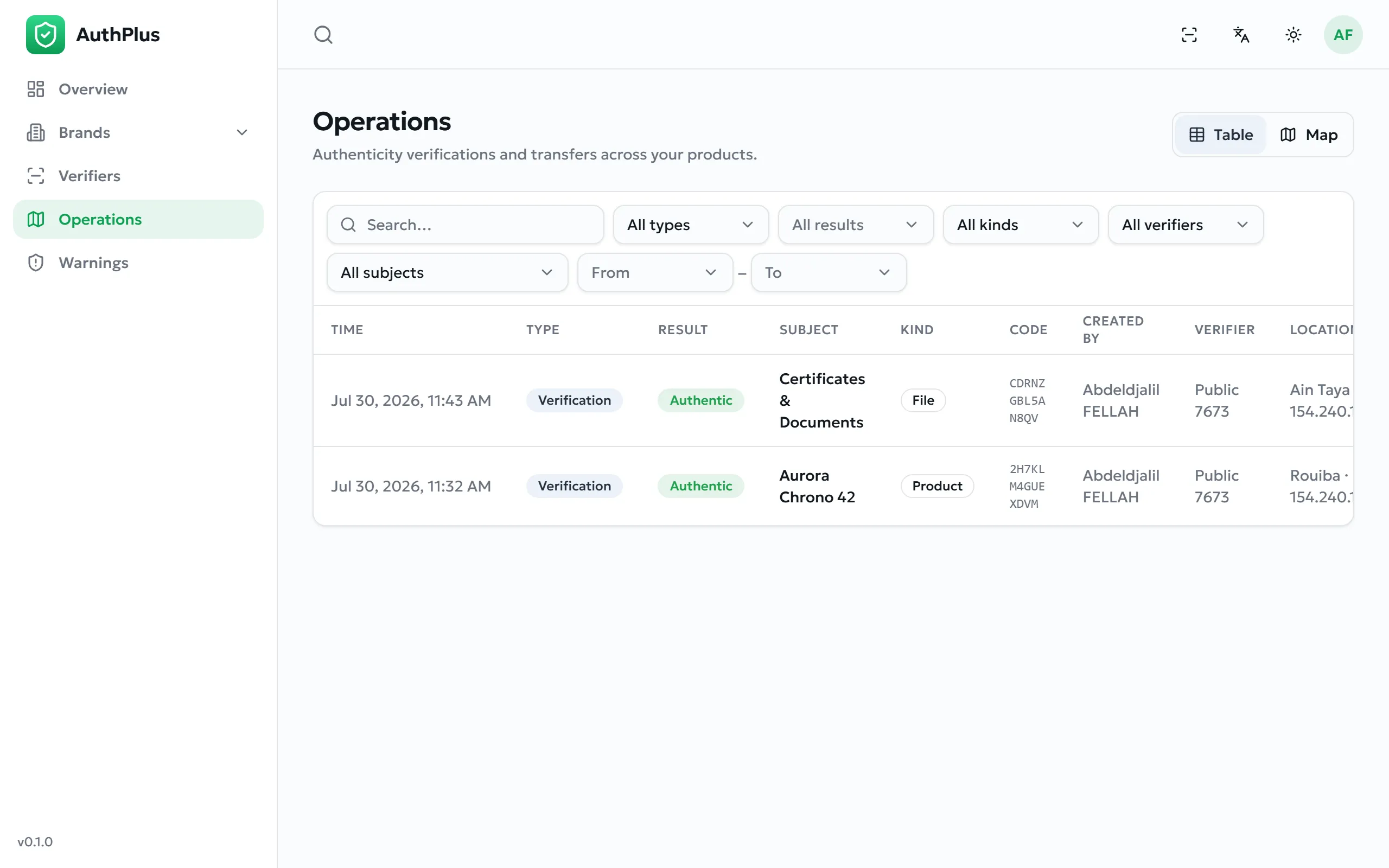
| Column | Meaning |
|---|---|
| Time | When it happened, in your profile’s timezone. |
| Type | Verification or Transfer. |
| Result | The verdict returned to the verifier. |
| Subject / Kind | What was scanned, and whether it is a product, asset or file. |
| Code | The code scanned. |
| Created by | The account that owns the code. |
| Verifier | The profile that performed the scan. |
| Location | Where the scan came from, as a place name and network address. |
Filters above the table narrow by free text, subject type, result, operation kind, verifier, subject and date range. They combine, so you can isolate, for example, every non-authentic scan of one product last month.
The map view
Section titled “The map view”Switch to Map to plot the same filtered set geographically. Each point is a scan, coloured by result.
Warnings
Automatic alerts on suspicious activity affecting your codes.
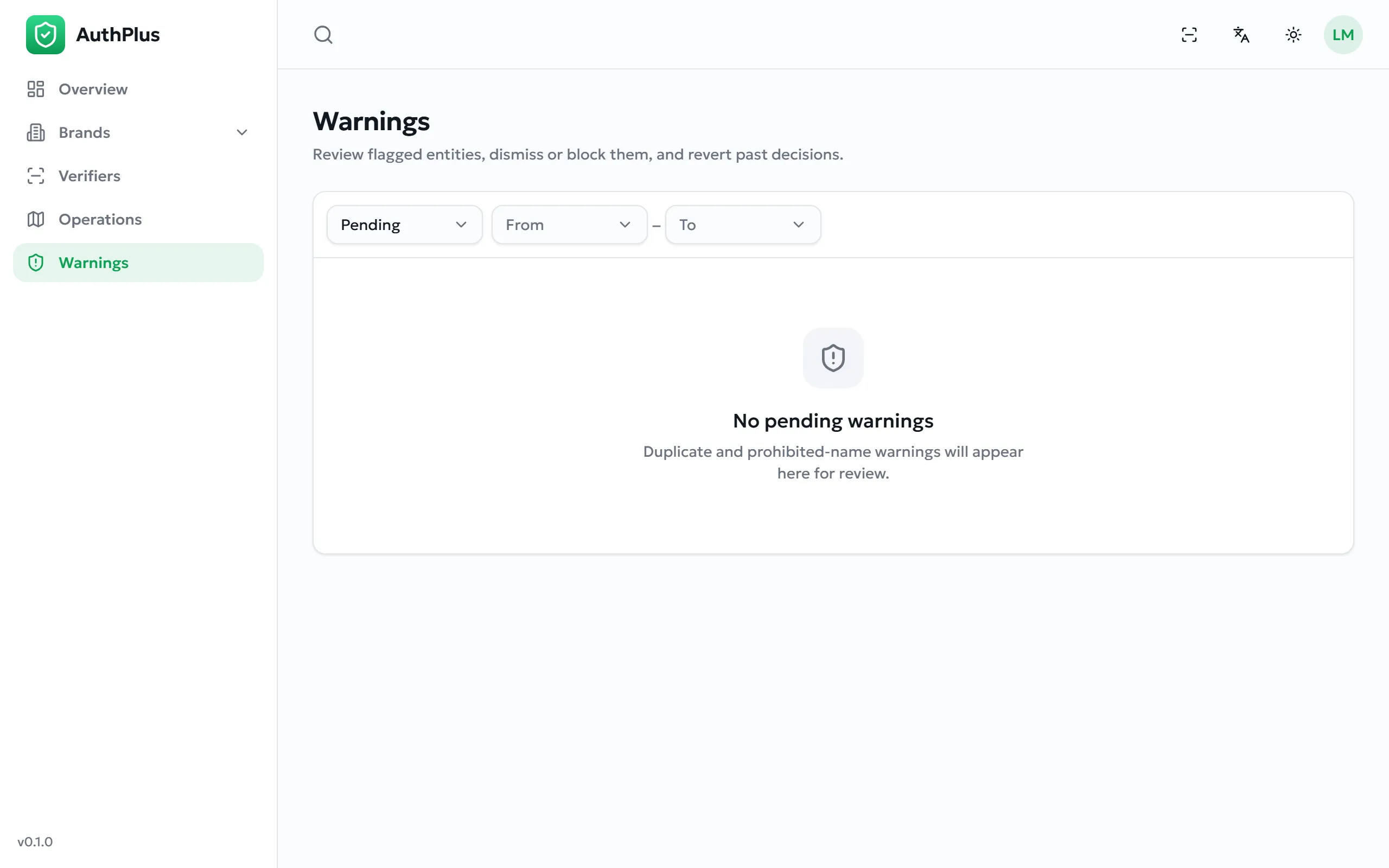
As a brand owner you see one kind of warning: over-verified codes. A warning is raised when one of your codes has been verified more times than the ceiling you set in your profile (Your verification ceilings) — the clearest automated signal that a code has been copied onto counterfeit goods.
Handling a warning
Section titled “Handling a warning”- Open Warnings. Pending items are shown by default; the sidebar badge counts them.
- Read the entry: which code, which subject, and how many scans it has accumulated.
- Cross-check it in Operations — filter by that code and look at where and how often it was scanned.
- Decide:
- Dismiss — the activity is legitimate. The warning is closed; the code keeps working.
- Block — the code is compromised. It is archived, so it stops verifying at once and any further scan returns This product has been withdrawn.
A closed warning can be reopened later with Revert, which also restores a blocked code.
| Status | Meaning |
|---|---|
| Pending | Awaiting your decision. Counted in the sidebar badge. |
| Dismissed | Judged legitimate. The code was left active. |
| Resolved | The code was blocked. |
Security
How AuthPlus protects accounts and codes, and what is expected of you.
How your account is protected
Section titled “How your account is protected”| Measure | Detail |
|---|---|
| Password storage | Passwords are never stored, and cannot be recovered by anyone including administrators. Only a modern, deliberately slow one-way hash is kept, so a stolen database does not yield usable passwords. |
| Password rules | Minimum 8 characters. No further complexity is imposed — strength is your responsibility. |
| One-time codes | 6 digits, valid for 10 minutes, at most 5 attempts, single use. Requesting a new code cancels the previous one. |
| Automated-abuse protection | Sign-in, sign-up, password reset and every public scan carry an invisible proof-of-work check that makes bulk automated attempts expensive (The invisible anti-bot check). |
| Role separation | Ordinary users cannot reach administrative functions, and administrators cannot alter the superadministrator account. |
Sessions and devices
Section titled “Sessions and devices”Signing in creates a session that is renewed silently while you work, so you are not interrupted. Sessions are long-lived by design, so that field staff are not asked to sign in repeatedly.
| Action | Effect on sessions |
|---|---|
| Sign out | Ends the session on that device only. |
| Password reset (from the sign-in page) | Ends every session, on every device. |
| Password change (from your profile) | Other devices stay signed in. |
| Email change | Sessions are unaffected. |
What makes a code hard to forge
Section titled “What makes a code hard to forge”- Unguessable. Codes are random, drawn from a 32-character alphabet that excludes easily confused glyphs, and are 12 to 20 characters long. They are not sequential, so knowing one tells an attacker nothing about another.
- Verified centrally. A code is meaningless on its own — authenticity is decided by the server, not by anything printed on the label.
- Signed for assets and documents. Certificates carry a cryptographic signature over the record’s identity; altering the record breaks the signature and the verdict becomes Verification failed.
- Fingerprinted for files. A certified document is bound to a fingerprint of its exact contents, so any modification is detectable.
- Copy-detection. Because copying a genuine code onto many fakes cannot be prevented physically, AuthPlus detects it statistically through verification ceilings and custody conflicts (Authentic, with a warning).
The invisible anti-bot check
Section titled “The invisible anti-bot check”Before a sign-in, a sign-up, a password reset or a public scan is accepted, your device performs a small computation that proves a real client is present. There is no puzzle, no checkbox and nothing to read.
| What you may notice | Explanation |
|---|---|
| A brief delay before the button responds | Normal, particularly on older devices. |
| Challenge verification failed | The check expired — usually a page left open a long time. Reload and try again. |
| Could not fetch verification challenge | The device could not reach the server. Check connectivity. |
Good practice for your organisation
Section titled “Good practice for your organisation”- Give each person their own account and their own verifier profile; never share credentials.
- Keep the number of administrators to a minimum and review the list regularly (User management).
- Archive accounts and verifier profiles the day someone leaves.
- Change any initial password set for you by an administrator at first sign-in.
- Sign out on shared or public computers — closing the tab is not enough.
- Treat the CSV of issued codes as confidential: it lists valid codes in bulk.
- Review Warnings and Operations on a regular schedule; nobody is emailed when something suspicious happens (Notifications).
Data & privacy
What AuthPlus records, where it goes, and how long it stays. Read this before deploying the app to customers.
What a verification records
Section titled “What a verification records”Every completed scan or transfer writes one permanent line to the audit trail:
| Recorded | Detail | Visible to |
|---|---|---|
| What was scanned | The code, and the item it belongs to when it is recognised | The code’s owner, administrators |
| The result | Authentic, a warning, or the reason it failed | Same |
| When | Server timestamp | Same |
| Who | The verifier profile | Same |
| The device | A stable device identifier, plus manufacturer, model and operating system | Same |
| Where | Network address, resolved town or city, and precise coordinates when location is used | Same |
How location is determined
Section titled “How location is determined”| Source | When used | Precision |
|---|---|---|
| Device location (GPS) | When the verifier type requires it, and permission is granted | Precise — the actual position of the scan |
| Network address | Otherwise | Approximate — typically the town or the internet provider’s location |
Files and documents
Section titled “Files and documents”- Uploaded files — logos, product images, certified documents — are stored unchanged, in their original form. They are not resized or re-encoded, so any metadata they contain (including photograph location data) is preserved.
- Certified content is additionally fingerprinted, and that fingerprint is what verification compares.
- When you verify a file from your own device, the file is not uploaded — only its fingerprint is sent. Verifying a link is different: the server downloads the file to fingerprint it.
Retention, archiving and deletion
Section titled “Retention, archiving and deletion”AuthPlus is built to preserve evidence. The audit trail, in particular, is never edited or removed by the application.
| Record | Can be removed? |
|---|---|
| Operations (verifications and transfers) | No — permanent |
| Brands, products, assets, contents, items, issuances, codes | Archived only, never deleted |
| User accounts | Archived only |
| Warnings | Closed, not deleted |
| Verifier accounts | Archived only |
| Code types, print templates, verifier types | Archived only |
| Generated label documents | Yes — deleted along with the stored file |
| Prohibited-name entries | Yes |
Only two things can be removed outright, and neither is a record of anything: a generated PDF or CSV, which you can produce again at any time, and an entry on the prohibited-name blocklist. Everything else is archived.
Records are otherwise kept indefinitely: AuthPlus applies no automatic retention limit, and there is no self-service account deletion. Erasure requests are handled manually by the platform operator.
What is stored on your device
Section titled “What is stored on your device”| Stored | Why |
|---|---|
| A device identifier | Identifies the automatic verifier profile so scan history is continuous. |
| Verifier profiles and the active one | So you do not re-enter credentials at every launch. |
| Sign-in tokens | Keeps you signed in to the dashboard. |
| Language, theme, and the administrator’s owner filter | Preferences, per device. |
AuthPlus uses no analytics, no advertising and no tracking cookies, and loads no third-party fonts or scripts. The only external call made by the app is the location lookup described in How location is determined.
Removing a verifier profile in the app removes it from that device only; the account and its history remain on the server.
Getting your data out
Section titled “Getting your data out”Codes can be exported as CSV per issuance (Labels & exports), and label sheets as PDF. There is no bulk export of operations, catalogue or account data from the interface — an operator with database access can produce one on request.
Notifications
What AuthPlus tells you, and — importantly — what it does not.
Emails
Section titled “Emails”AuthPlus sends exactly one kind of email: a one-time code. Every message expires after 10 minutes and asks for nothing else.
| Trigger | Subject | Sent to |
|---|---|---|
| Signing up | Verify your AuthPlus email | The address being registered |
| Signing in with a code | Your AuthPlus sign-in code | Your address |
| Forgotten password | Reset your AuthPlus password | Your address |
| Changing your email | Confirm your new AuthPlus email | The new address |
| Changing your password by code | Your AuthPlus password-change code | Your address |
In the interface
Section titled “In the interface”| Signal | Where | Meaning |
|---|---|---|
| Red count on Warnings | Sidebar | Unresolved warnings. Hidden when there are none. |
| Red count on Brands | Sidebar, administrators only | Brand verification requests awaiting a decision. |
| Brief messages | Corner of the screen | Confirmation or failure of the action you just performed. They disappear after a few seconds. |
| Status chips | Brand pages | Verified, pending or rejected badge status. |
Troubleshooting
Symptoms, causes and resolutions, grouped by where the problem appears.
Signing in and accounts
Section titled “Signing in and accounts”| Symptom | Likely cause | Resolution |
|---|---|---|
| Invalid email or password | Wrong credentials, or the address is not registered. | Re-type carefully. Use Forgot password, or sign in with an email code instead. |
| Account is not active | The account has been archived by an administrator. | Contact your administrator; only they can restore it (Archiving an account). |
| No code arrives | Wrong address, spam filtering, or the address is not registered. | Check spam. Confirm the address. For a sign-in code, remember the request always reports success even for unknown addresses. |
| Invalid or expired code | More than 10 minutes elapsed, five wrong attempts, or an older code was used. | Request a fresh code and use the newest email. |
| Challenge verification failed | The page has been open too long. | Reload and retry. |
| Signed out unexpectedly | Someone performed a password reset on the account. | Sign in again. If you did not request it, tell your administrator immediately. |
Scanning and verification
Section titled “Scanning and verification”| Symptom | Likely cause | Resolution |
|---|---|---|
| You are not allowed to verify this code type | The active profile does not match the code’s tier. | Switch profile (Switching the active profile). The item is not necessarily suspect. |
| Select a verifier first | No profile is active on the device. | Open Verifiers and select one. |
| Camera shows nothing, or is refused | Camera permission denied, or another app holds the camera. | Grant camera access in the device settings; close other camera apps; use manual entry meanwhile. |
| The QR will not read | Print too small, poor contrast, glare, or a damaged label. | Improve lighting, hold steady at 10–15 cm, or type the printed code instead. |
| Stuck on Enable location | The profile requires a position and none is available. | Enable location, allow the permission, and move where the sky is visible (When location is required). |
| Everything times out | No connectivity, or the device cannot reach the server. | Verification always needs a connection. Check the network; on a private installation confirm the device is on the right one. |
| Verdict says withdrawn for stock you believe is fine | The brand, product, batch, issuance or the owner’s account has been archived. | Ask the brand — the withdrawal is deliberate (Archiving — nothing is ever deleted). |
Dashboard
Section titled “Dashboard”| Symptom | Likely cause | Resolution |
|---|---|---|
| Records are missing | The status filter is on Active, or (administrators) the owner filter is on the wrong owner. | Switch the status filter to see archived records; check the owner selector (The owner filter). |
| Times look wrong | No timezone set on your profile. | Set it in Profile (Name and timezone). |
| Quantity must be between 1 and 1000 | Too many codes requested at once. | Split the run into several issuances. |
| Please upload an image file / attachments must be images or PDFs | Unsupported file type. | Convert to PNG, JPEG or PDF, under 8 MB. |
| Upload fails silently on a large file | The file exceeds 8 MB. | Compress or resize it. |
| No print template available | No label template is configured on the platform. | Ask an administrator (Platform configuration). |
| Object storage is not configured | Server-side storage is unavailable, so files and documents cannot be saved. | This is an installation problem — contact whoever operates your AuthPlus server. |
| The map is empty | No operations match the filters, or none carry a position. | Widen the date range and clear filters; remember approximate locations depend on the network. |
| A page briefly shows a generic error | Transient server or connectivity problem. | Use the retry action. If it persists, note the time and contact support. |
Frequently asked questions
Using AuthPlus
Section titled “Using AuthPlus”- Do customers need an account to verify a product?
- No. The verification app works with no account and no registration, in the mobile app or a browser.
- Does verification work without an internet connection?
- No. Authenticity is decided by the server, so a connection is always required.
- Can I verify a product without the mobile app?
- Yes — open the AuthPlus website and choose the verification area. Everything except precise location works the same way.
- What if the QR code is damaged?
- Type the code printed beside it. Codes deliberately avoid the characters most often confused.
- Someone scanned my product before me. Is it fake?
- Not necessarily — a batch is normally checked by the factory, the distributor and the shop. What matters is the pattern: many checks, in distant places, in a short time.
Codes and printing
Section titled “Codes and printing”- How many codes can I issue at once?
- Up to 1000 per issuance. Larger runs are split into several issuances, which also gives finer recall control.
- Can I reuse or re-issue a code?
- No. Every code is unique and permanent. Issue new codes instead.
- Can I change a product's name after codes are printed?
- Yes — verdict screens show the current details. What is printed on the physical label does not change, so keep the two consistent.
- What size should the printed QR be?
- Test before the full run. Print one sheet at the final size, on the final material, and scan it with an ordinary phone (Labels & exports).
- Can I stop a single code without affecting the batch?
- Yes. Archive that one code. Archiving the issuance, item, product or brand affects everything beneath it.
Accounts and access
Section titled “Accounts and access”- I forgot my password.
- Use Forgot password, or sign in with a one-time email code (Signing in).
- Can an administrator see my password?
- No. Passwords are stored only as an irreversible hash. An administrator can set a new one for an account they create, but cannot read an existing one.
- Can two people share one account?
- Technically yes, but do not: the audit trail attributes every action to the account, so sharing destroys accountability.
- What happens to my products if my account is archived?
- They stop verifying — every code you own returns withdrawn until the account is restored (Archiving an account).
- How do I get the Admin role?
- Another administrator must grant it. It cannot be requested from the interface.
Data and privacy
Section titled “Data and privacy”- Is my document uploaded when I verify a file?
- No. The fingerprint is computed on your own device and only that value is sent. Checking a link is different: there the server downloads the file to hash it.
- Can I delete a record?
- Records are archived, not deleted, so the audit trail stays intact. Archived records stop verifying and can be restored.
- Who can see where a scan happened?
- The owner of the scanned code, and administrators. Verifiers see their own history.
- Will I be notified if one of my codes is abused?
- Not by email or push — a warning appears in the dashboard and the sidebar badge (Notifications).
Glossary
- Archive
- To withdraw a record without deleting it. Archived records stop verifying and can be restored (Archiving — nothing is ever deleted).
- Asset
- A unique valuable registered individually and carrying a signed ownership certificate.
- Authenticity code (code)
- The unique string, printed as text and as a QR symbol, that identifies one protected unit.
- Batch
- An item under a product: one production run, to which codes are attached.
- Brand
- The top of the protection chain; the name shown to anyone verifying.
- Code type
- The tier of a code — Public, Reseller or Control — which decides who may verify it.
- Content
- A certified file: a document, certificate or media item bound to a fingerprint of its contents.
- Custody / holder
- Which verifier profile currently holds an item in the field. Moved by a transfer in the app (Transfers & custody).
- Fingerprint
- A value computed from a file's exact contents. If the file changes, the fingerprint no longer matches.
- Issuance
- One act of minting codes for an item, and the unit at which codes are printed and withdrawn.
- Item
- A concrete unit: a batch of a product, one individual valuable, or one document entry.
- Operation
- One recorded verification or transfer — a line in the audit trail.
- Over-verified
- A code checked more times than its ceiling allows; the principal automated counterfeit signal.
- Owner
- The account a record belongs to, and the boundary of who can see it.
- Owner filter
- The administrator control that chooses whose data every screen shows (The owner filter).
- Ownership transfer
- Moving a code from one AuthPlus account to another, in the dashboard. Distinct from custody.
- Product
- A manufactured good produced in quantity, organised into batches.
- Subject
- The generic term for a product, an asset category or a content category.
- Superadministrator
- The platform operator's account, which configures code types, templates and verifier types.
- Verification ceiling
- The number of scans a code may receive before a warning is raised (Your verification ceilings).
- Verifier
- The identity under which a scan is recorded — a device profile, not a dashboard account.
- Verifier type
- The template governing a verifier's behaviour: which codes it may check, whether it self-provisions, whether it needs location.
- Verification badge
- The green check displayed beside a brand whose identity AuthPlus has confirmed (Brand verification).
- Warning
- An automatic alert on suspicious activity, awaiting a human decision (Warnings, Moderation).
Support
Getting help, and what to include so that help is fast.
Before you contact anyone
Section titled “Before you contact anyone”- Check §38 Troubleshooting — the majority of reports match an entry there.
- Reproduce the problem once more and note the exact wording of any message.
- Confirm whether it affects one record, one device, or everyone.
What to include
Section titled “What to include”| Detail | Why it matters |
|---|---|
| The exact message | Distinguishes between a dozen similar-looking causes. |
| Date, time and your timezone | Lets the team find the corresponding record. |
| The code, brand or record involved | Identifies exactly what was affected. |
| The account and role you were using | Many behaviours are role-dependent. |
| Web or mobile app, and the device | Camera, location and storage issues are platform-specific. |
| The version at the bottom of the sidebar | Confirms which release you are running. |
| A screenshot | Faster than any description. |
Who to contact
Section titled “Who to contact”- Questions about your own catalogue, codes or account — your organisation’s AuthPlus administrator, who can see your records and act on them directly.
- Everything else — platform faults, installation and configuration questions, and suspected security problems — write to contact@authenticity-plus.com.